
 FR
FR DE
DE EN
EN


Shortcuts bar
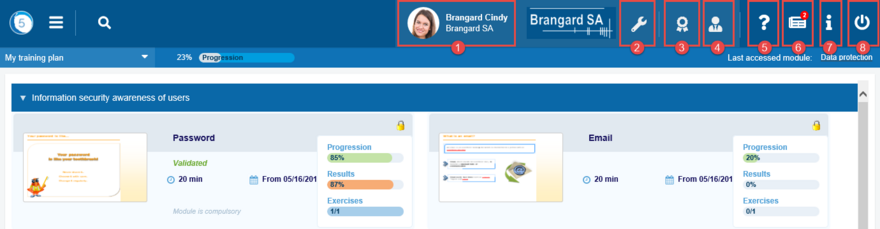
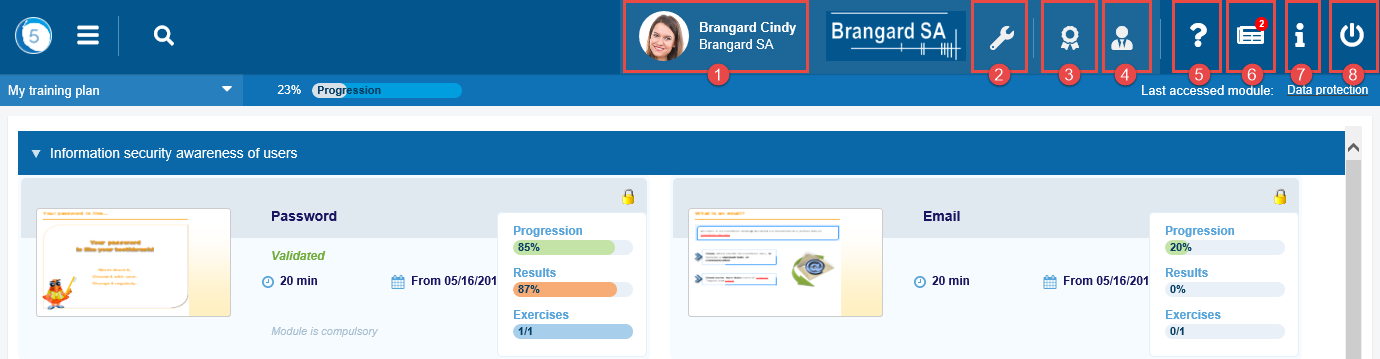
Shortcuts bar
The shortcuts bar allows to have access to several functions:
- user parameters
- myTeacher administration (for those who have the rights)
- certificates (cursus, modules and classroom lessons)
- coaches (cursus, modules, users, groups)
- myTeacher online help
- news and forum
- platform information
- disconnection
Most of these options are only accessible from the shortcuts bar.
1. User parameters
User parameters (name, first name, language, password, etc.) are also accessible from the Burger menu in myTeacher > Personal space > Parameters.
See the Personal space > Parameters section of the Online Help.
2. Administration
Click on the # 2 icon in the shortcut bar to access the Administration of myTeacher (for those who have the rights).
3. Certificates


Shortcuts bar
Click on the # 3 icon in the shortcut bar to access the certificates.
3.1 Course certification tab
Course certification
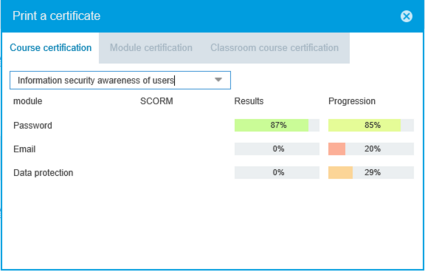
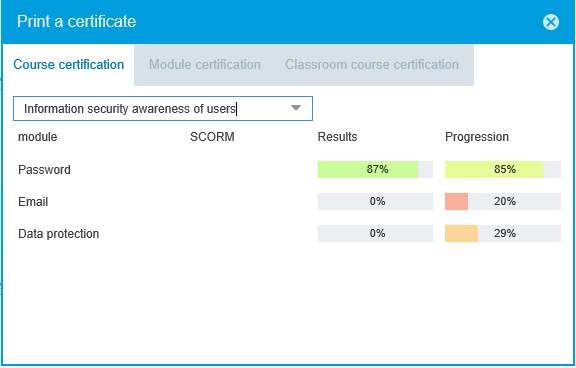
The Course certification tab allows the user to print the certificate of a cursus for which he succeeded (that is, for which all the modules are successful).
Reminder: the conditions of success of a module can be:
-
a success rate at the required exercises
-
and/or a rate of course of required module
Prior to that, the administrator must have given permission to print the certificate at the level of the cursus.
Select the desired cursus in the list of cursus and click on the printer to print the certificate.
3.2 Module certification tab
Module certification
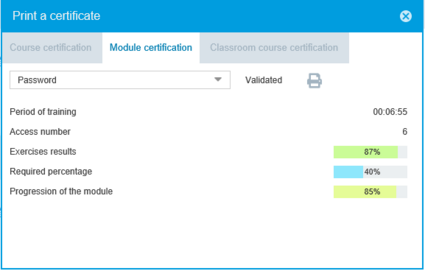
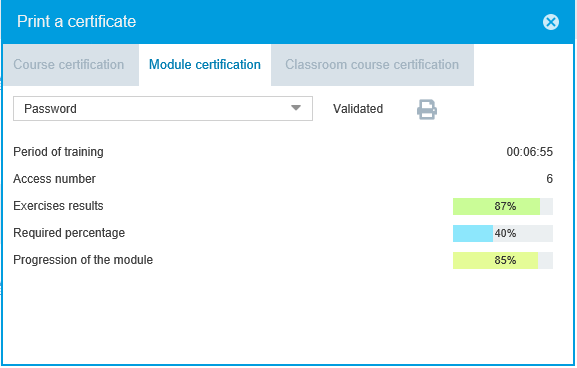
The second tab, Module Certification, allows the user to print the certificate of a module (whether he was successful or not).
Reminder: the conditions of success of a module can be:
- a rate of success to the required exercises
- and/or a rate of course of required module
Prior to that, the administrator must have given the permission to print the certificate at the level of the module in the cursus.
Select the required module in the list of modules and click on the printer in order to print the certificate.
3.3 Classroom course certification tab
Classroom course certification
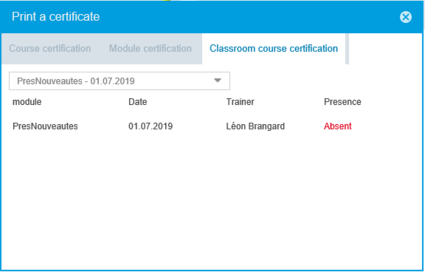
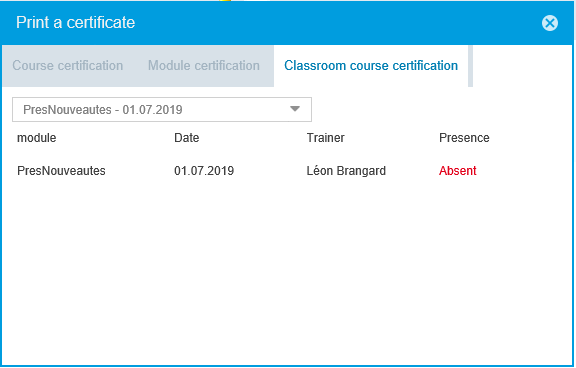
The third tab, Classroom course certification, allows the user to print his Attestation of Attendance at a classroom course.
Reminder: the Presence column displays:
- - if the course is in the future
- Absent(e) until the administrator has checked the Present box of the selected course (in coaching area> absentee tracking)
- Present otherwise
Prior to that, the administrator must have given the permission to print the certificate of attendance, at the level of the module in the cursus.
Select the required classroom course in the list of modules and click on the printer in order to print the certificate.
4. Coaches


Shortcuts bar
Click on the # 4 icon in the shortcut bar to access the managers (coaches).
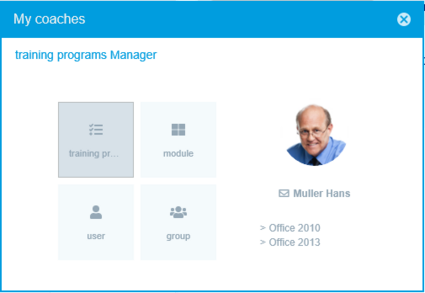
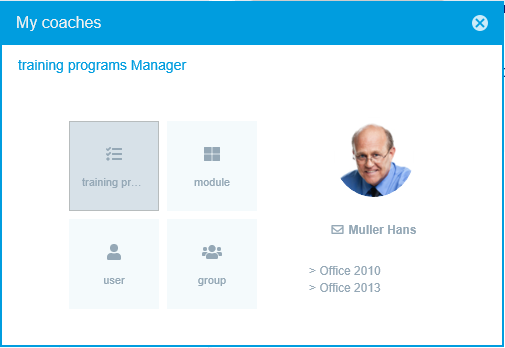
My coaches
This window displays all the managers (if they were specified) who have a view on the progress of the user in his formation. The managers concern:
- cursus
- modules
- groups
- users
Click on the envelope under the manager to send him a mail.
5. Online help


Shortcuts bar
Click on the # 5 icon in the shortcut bar to access the online help.
6. News


Shortcuts bar
Click on the # 6 icon in the shortcut bar to access to news.
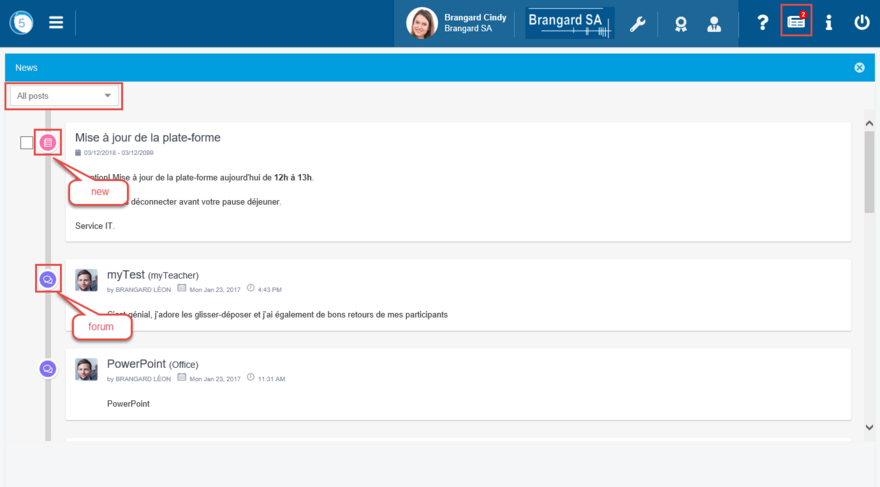
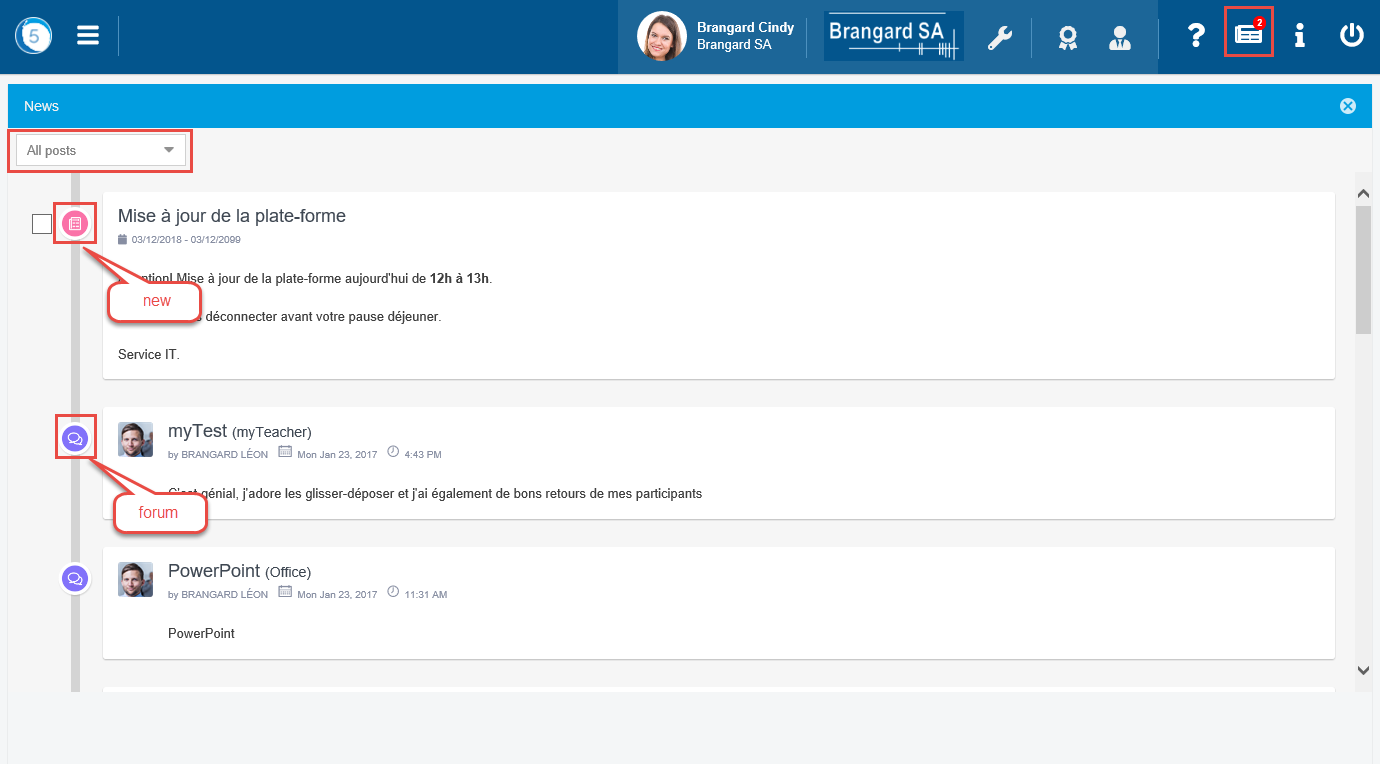
News and forum
The news are pieces of general information. The number of unread information is displayed in a circle on the News icon.
This window also contains the posts of the forums to which the user is registered.
The All posts drop-down list allows you to filter on news or forum posts.
The check box next to a new allows the user to mark it as read, and so not to have it in the window, at startup.
7. Information


Shortcuts bar
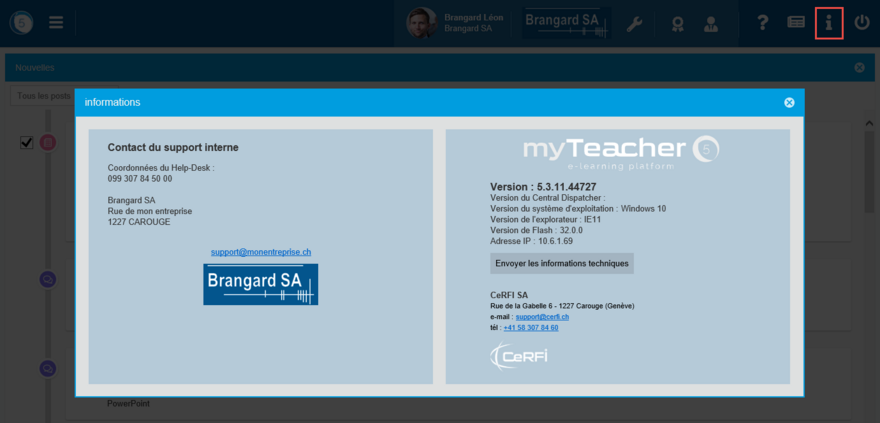
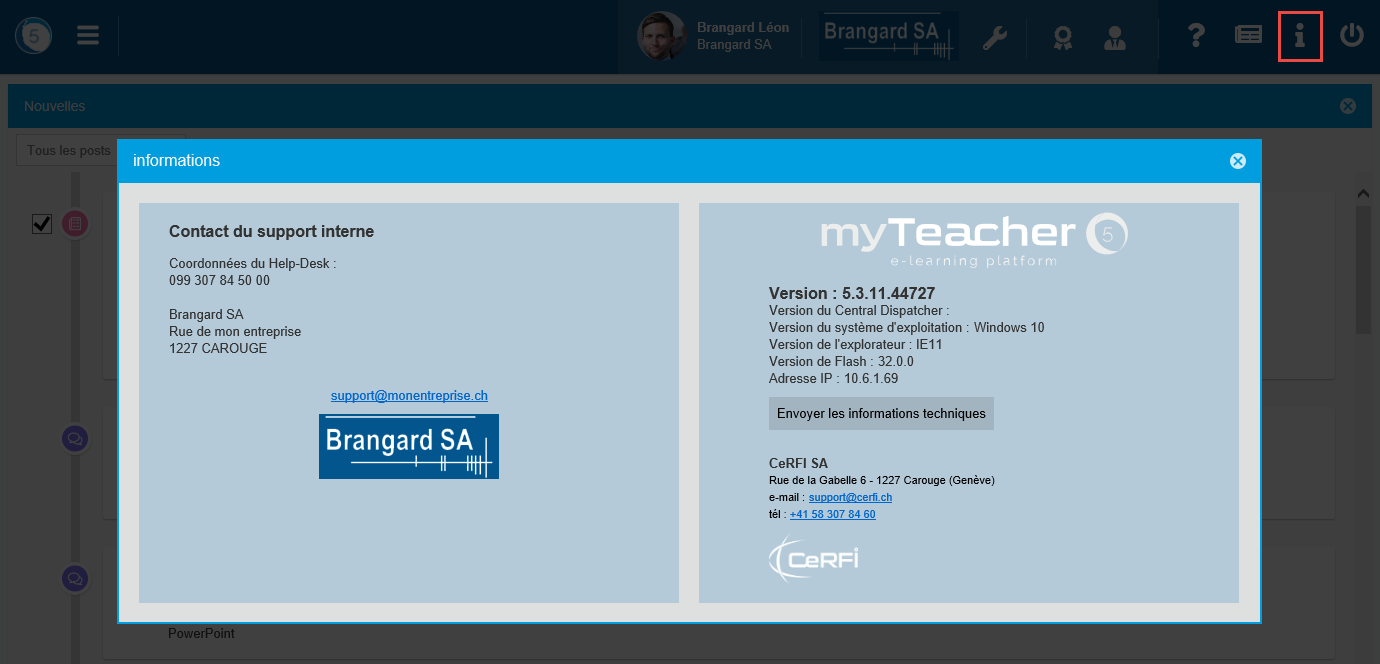
Click on the # 7 icon in the shortcut bar to access to technical information (myTeacher version, etc.)
Information
This dialogue box allows to reach the details of contact of the support to be called in case of a problem with the platform.
It also identifies all the software programs used by myTeacher with their version.