
 FR
FR DE
DE EN
EN


Quiz and survey
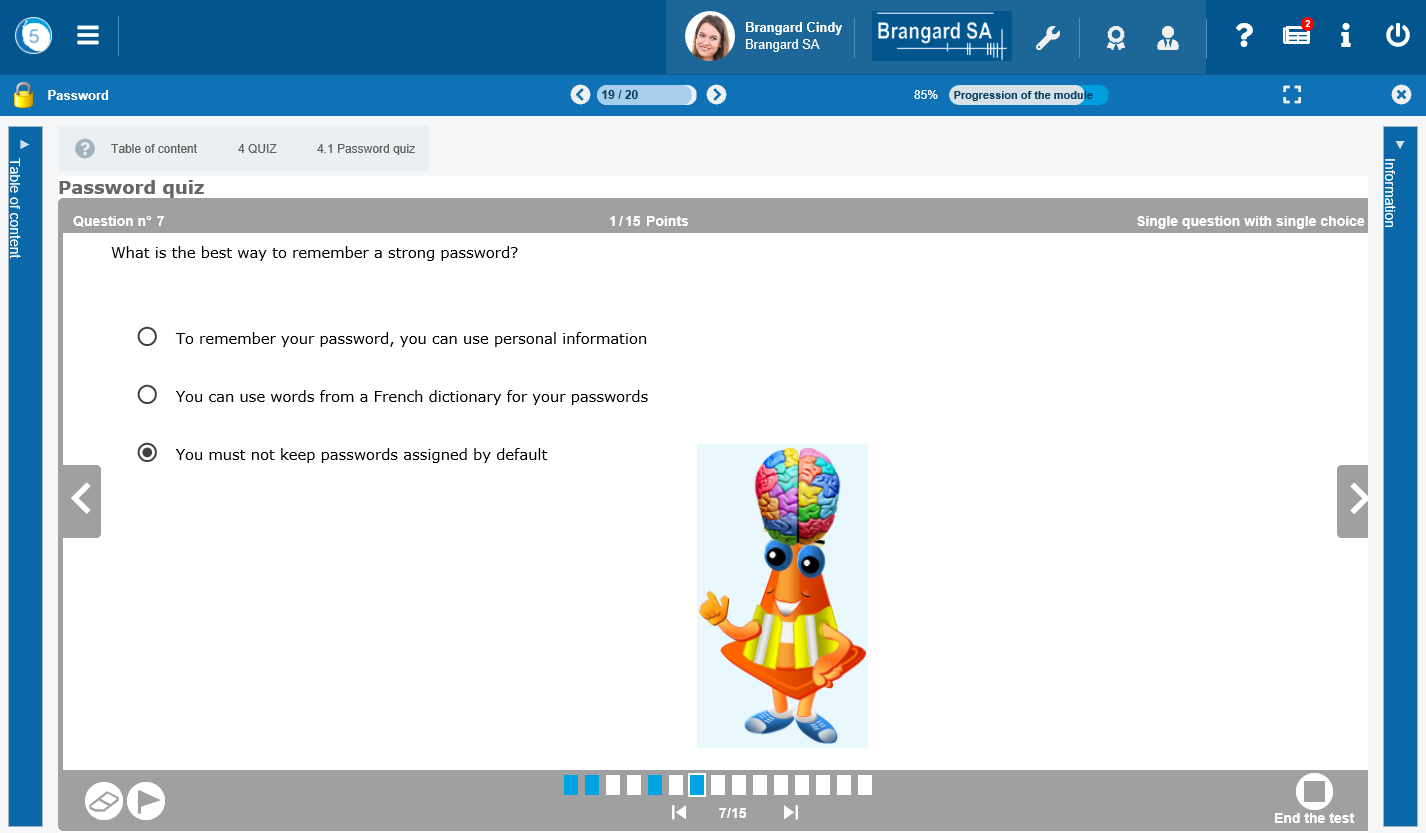
Exercises in a module
In the course of the lessons, some quizzes are added in view of a self-evaluation.
All the questions of the quizzes have the same display with specific functions.
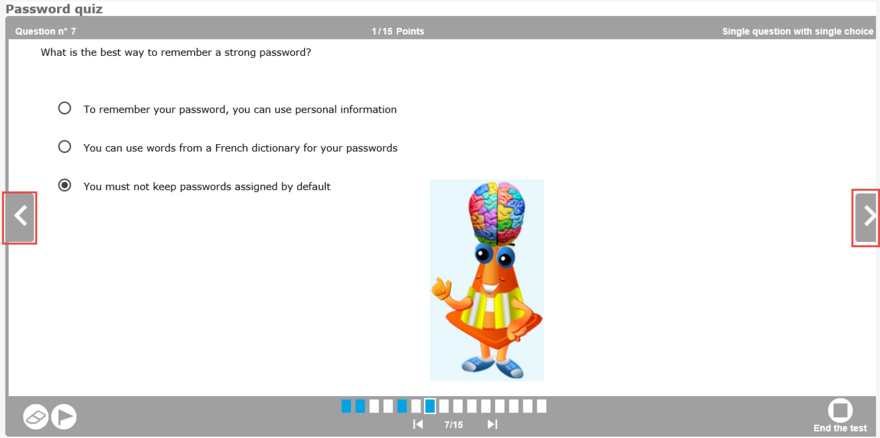
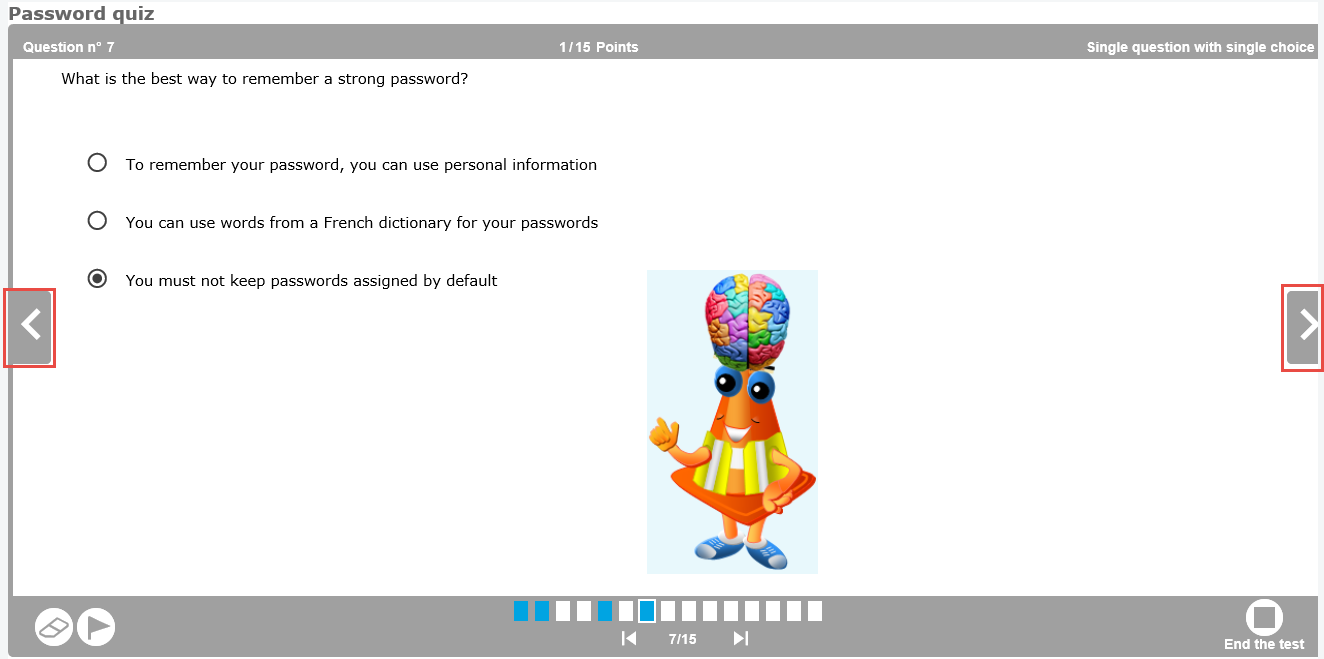
Change the question using the arrows on the sides of the quiz
 Visualize the progress in the quiz. Each box represents a question. The blue boxes indicate that an answer is given to the question. Click on a box to go directly to the question.
 Delete the answers to the current question.
 Mark the question in order to go back to it easily.
 Going back to the first question or going back to the last question thanks to these buttons of navigation.


When the administrator has allowed so, validate the current question before moving to the following question.
 Use the button End the test to display the summary of the answers.
Synthesis of the quiz
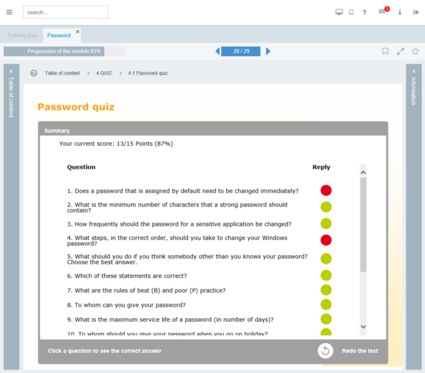
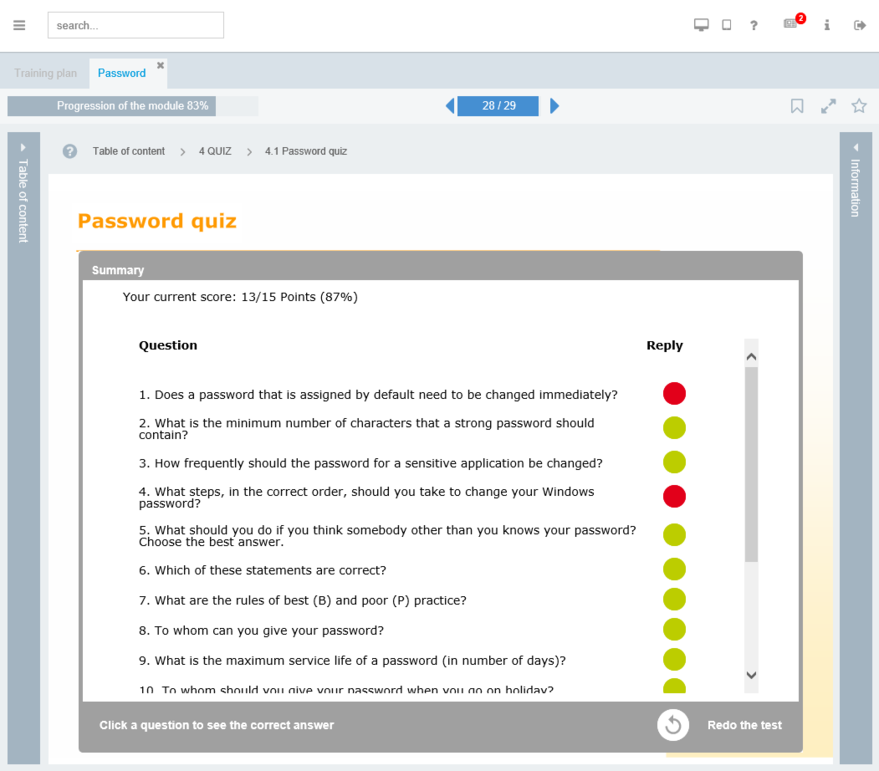
Synthesis of the questions
After having clicked on Validate your answers, the result of the quiz is displayed. In some cases, it is possible to see the correction of each question.
 Result of quiz
 In green, the good answers
 In red, the wrong answers


When the administrator authorizes so, print the answers of the quiz in PDF


When the administrator has parameterized it, print a certificate of success corresponding to the cursus in progress
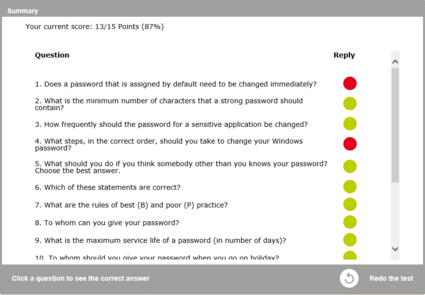
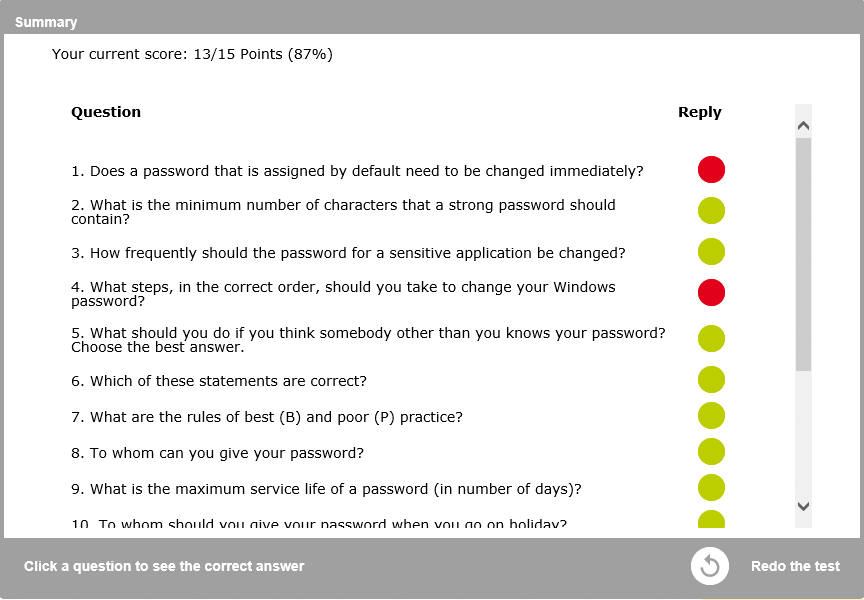
See the correction of the question
By clicking on a question in the list, it will be displayed with the correction and a feedback.
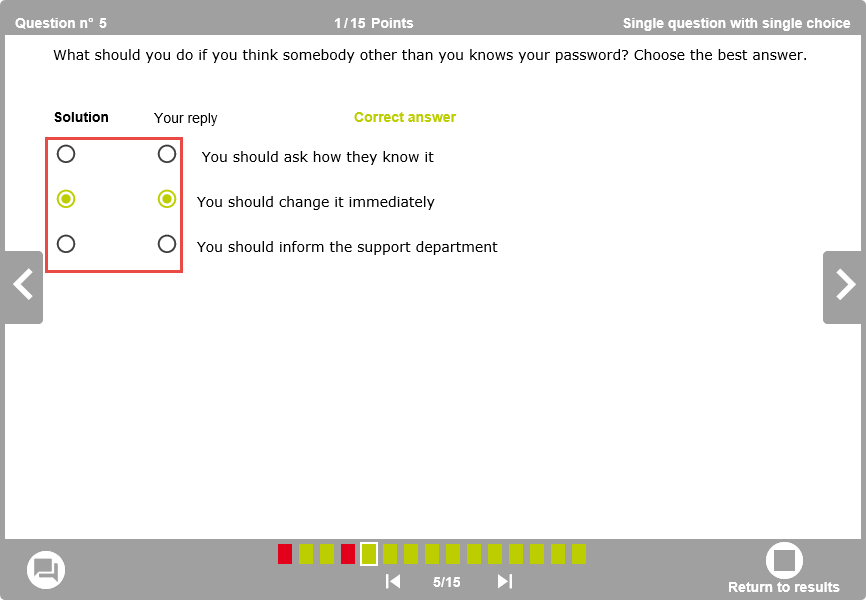
Solution of the question
The column Solution displays the solution to the question.
The column Answer displays the answer given by the user. In green, the good answers appear, in red, the mistakes.
For certain types of question, click on the button See the correction to display the detailed solution.
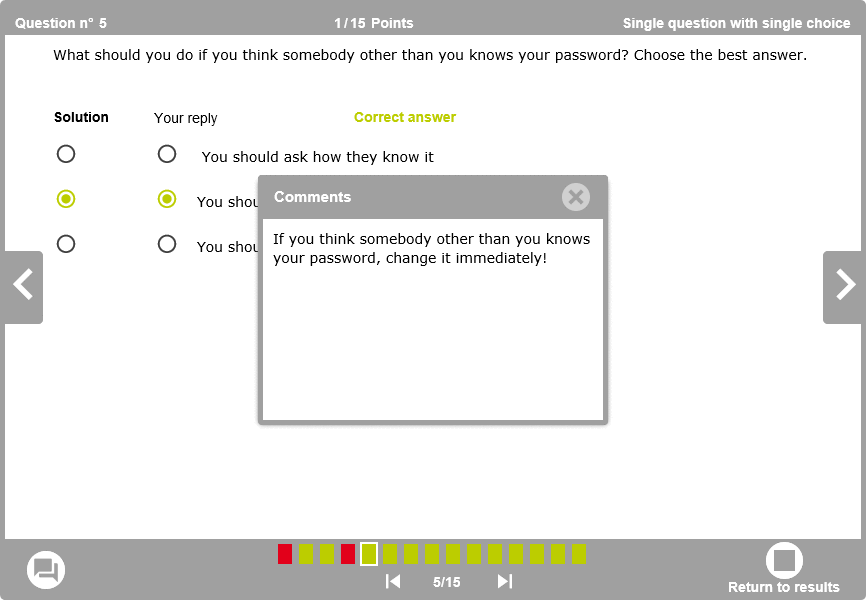
Feed-back
Click on the icon below the quiz to display the feedback.
The window of the feedback is displayed.
Types of questions
14 types of questions are available.
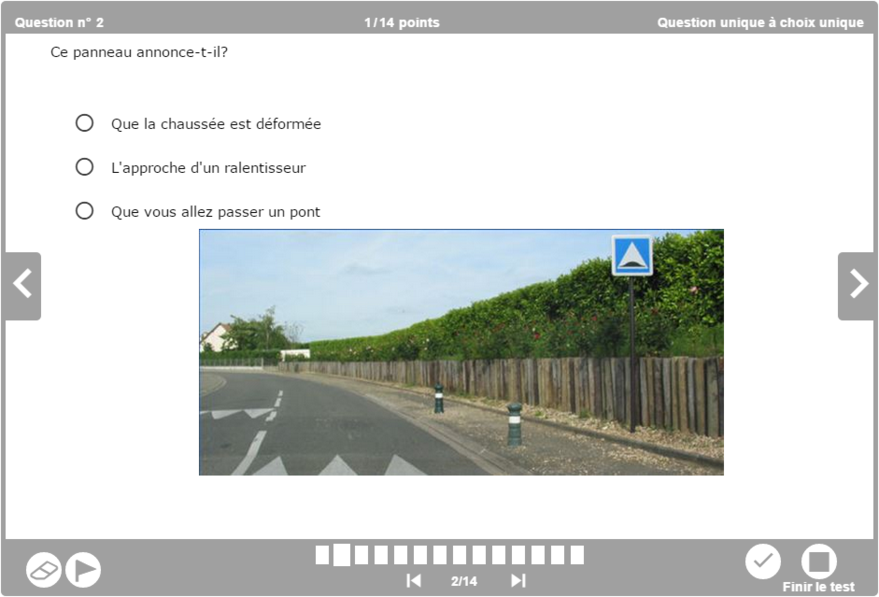
One and only question to one and only choice
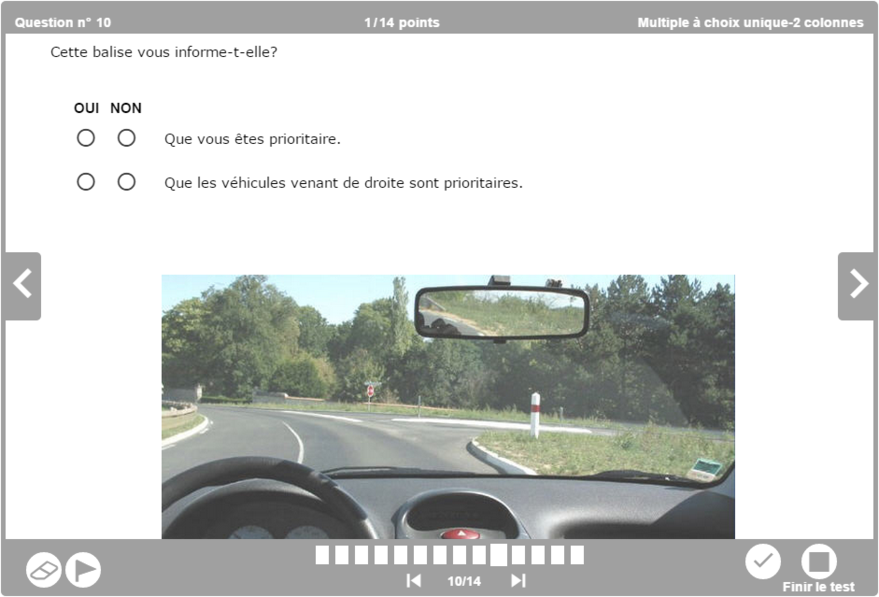
Multiple question to one and only choice (2 columns)
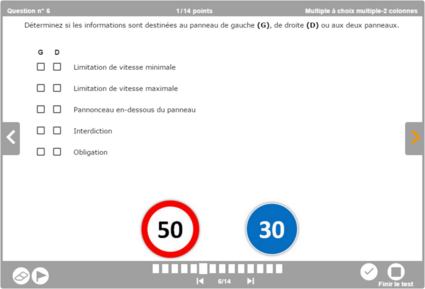
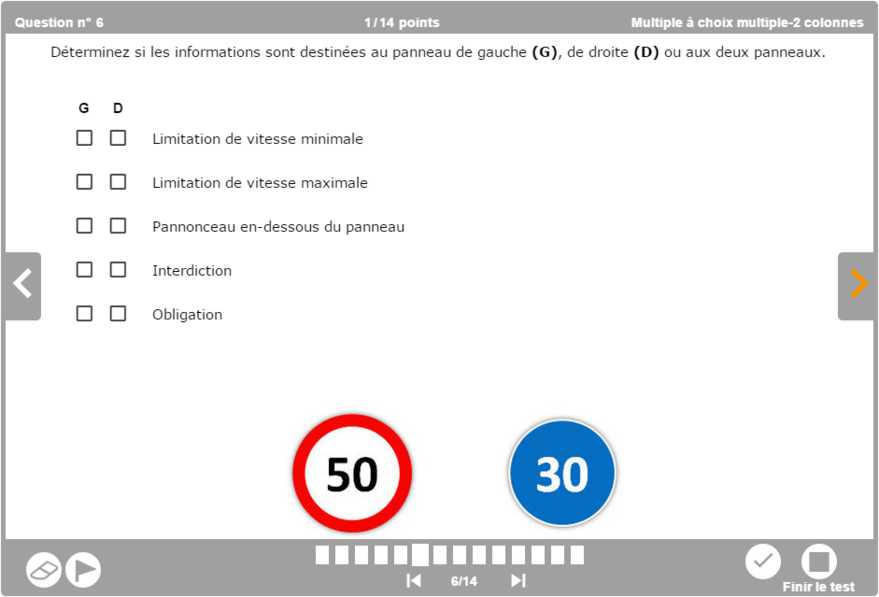
Multiple question to multiple choice (2 columns)
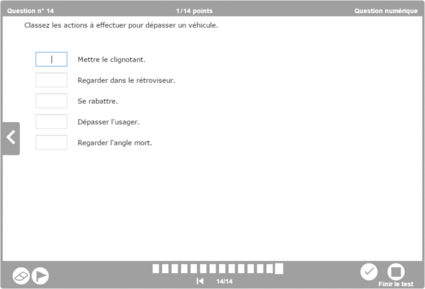
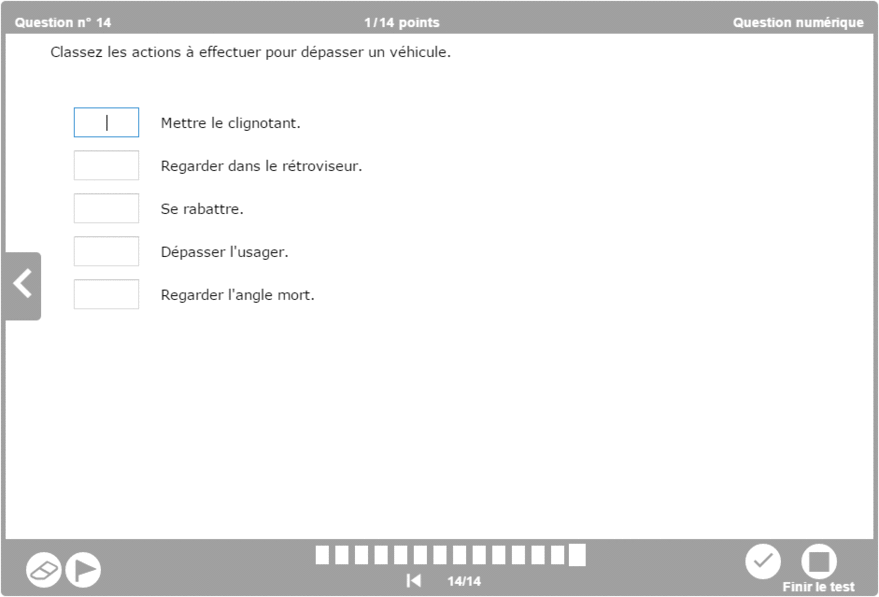
Digital question
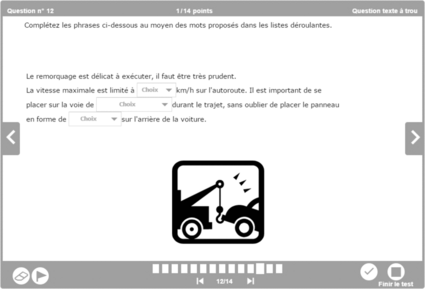
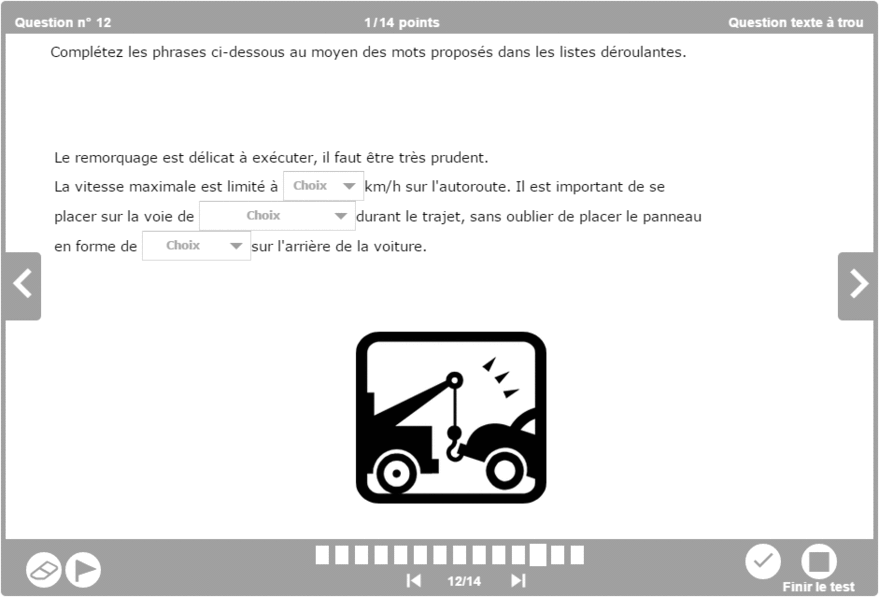
Fill-in-the-gap question
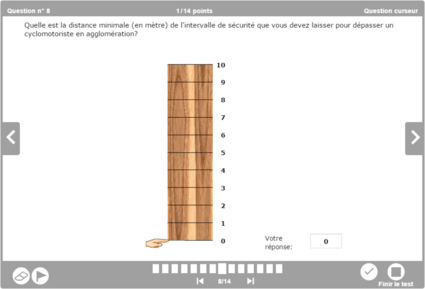
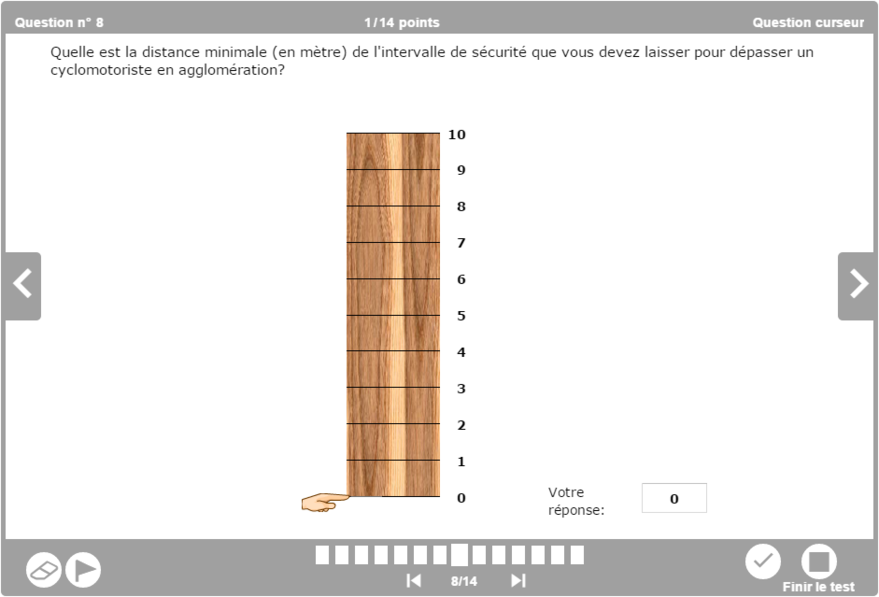
Cursor question
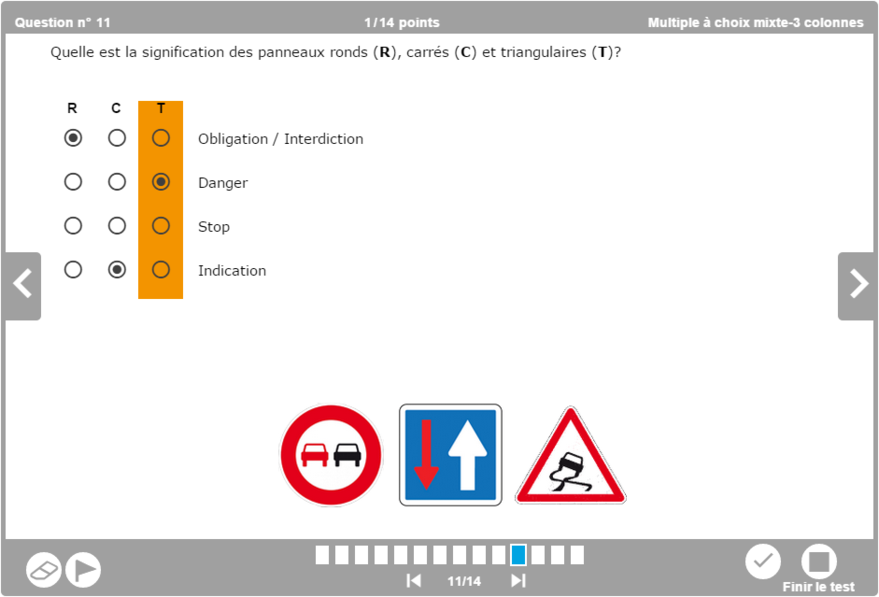
Multiple question to mixed choice (3 columns)
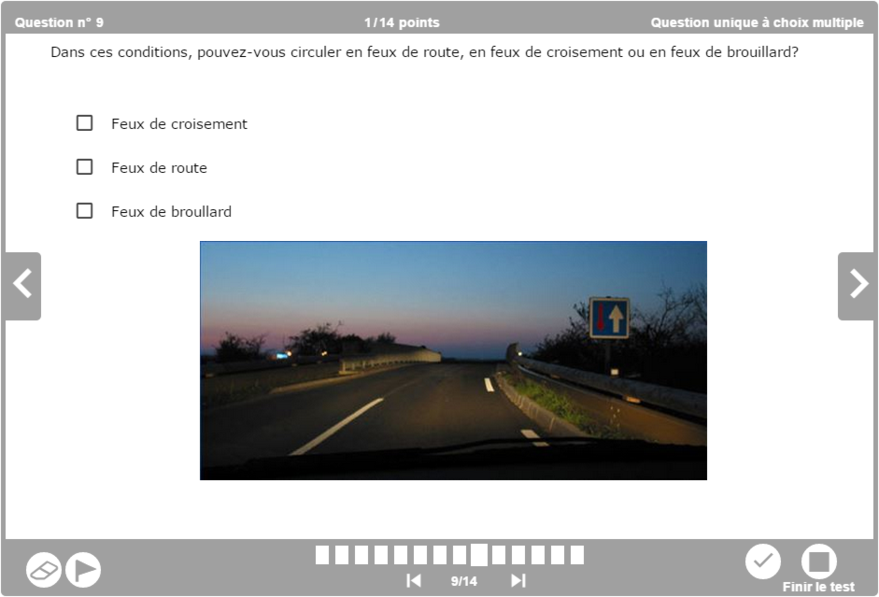
One and only question to multiple choice
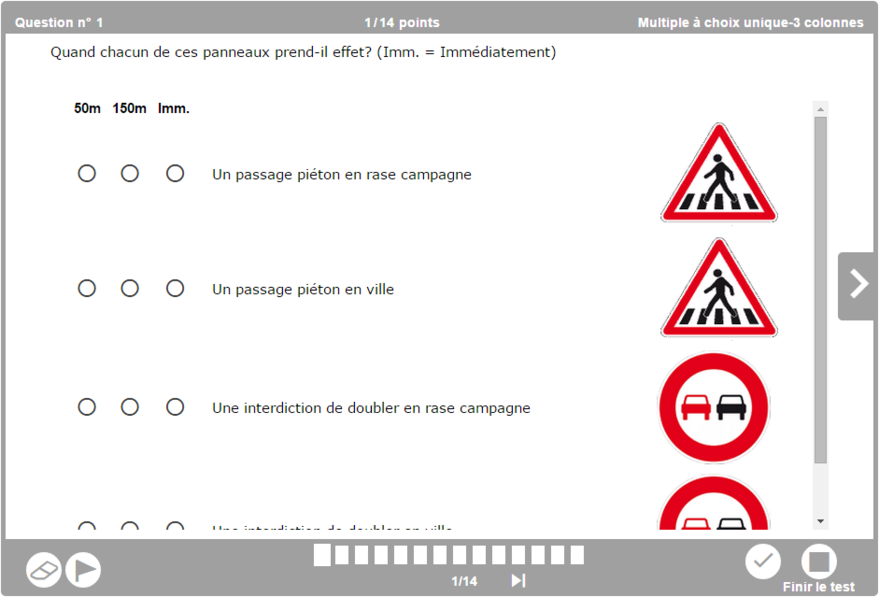
Multiple question to one and only choice (3 columns)
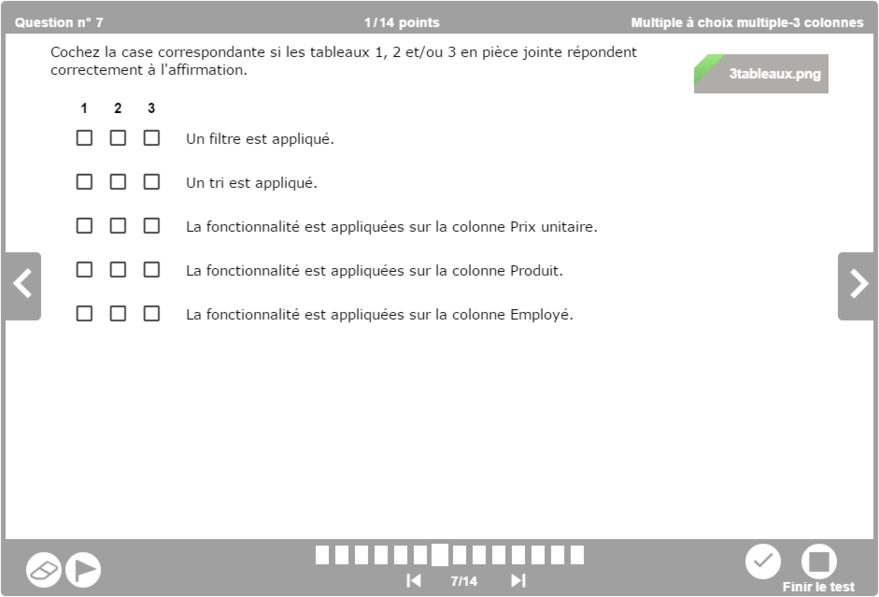
Multiple question to multiple choice (3 columns)
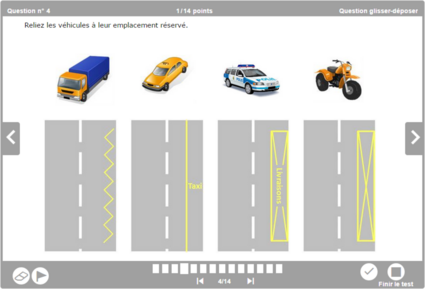
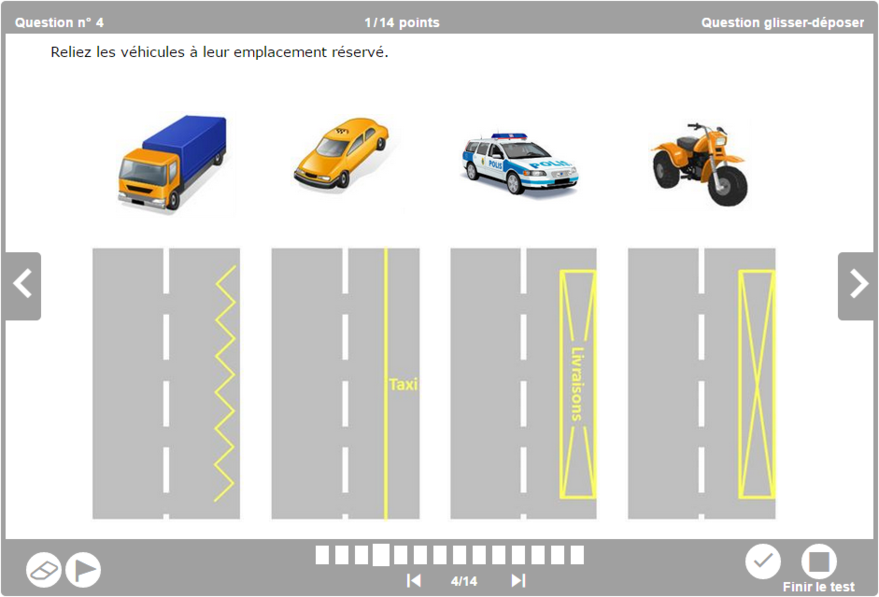
Drag & drop question
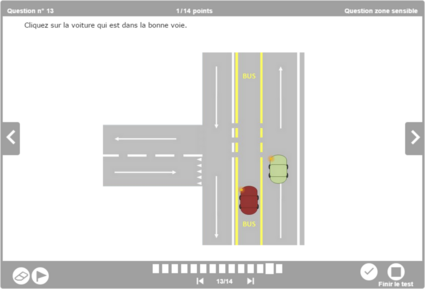
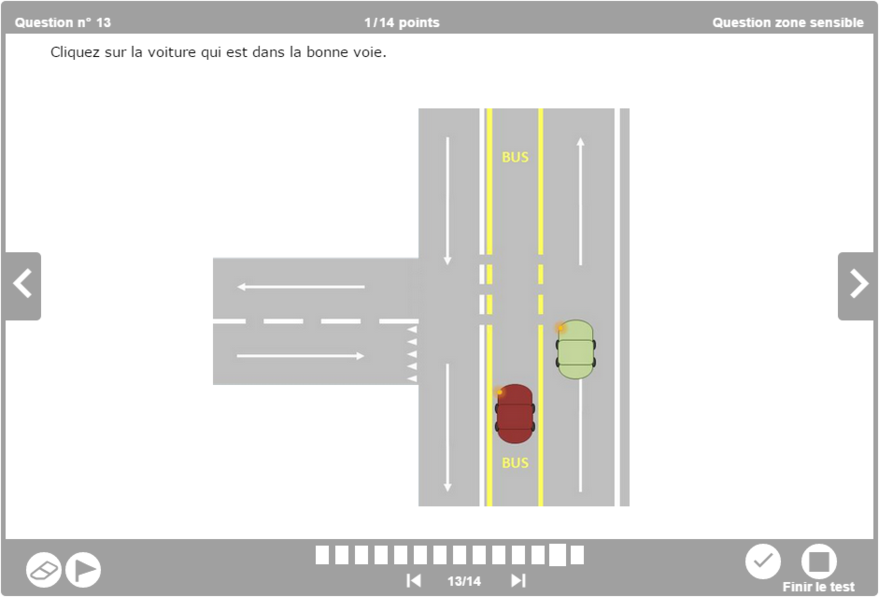
Sensitive area question
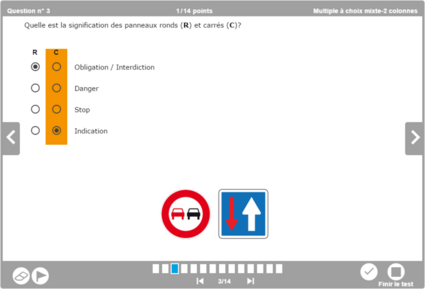
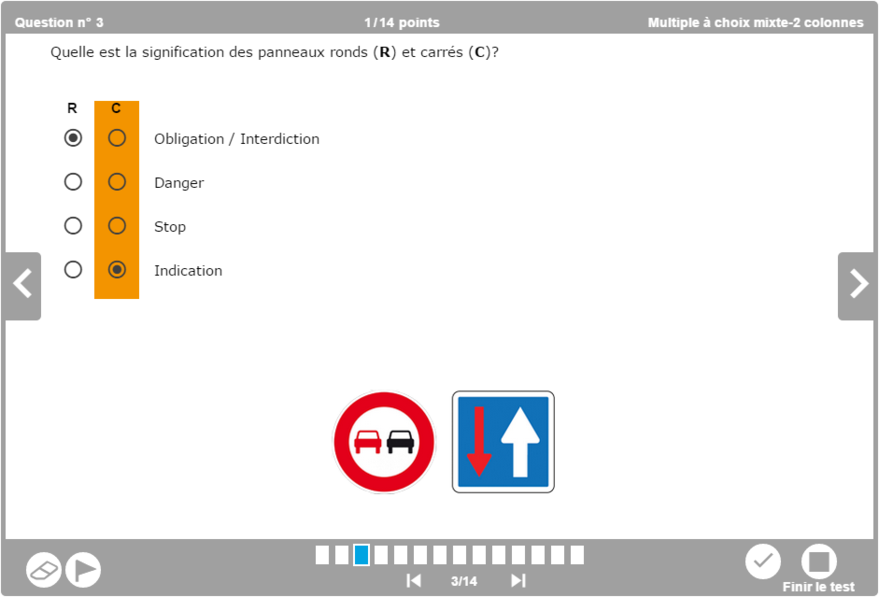
Multiple question to mixed choice (2 columns)
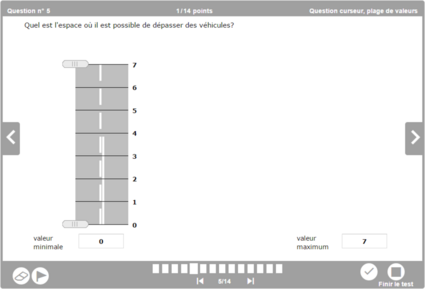
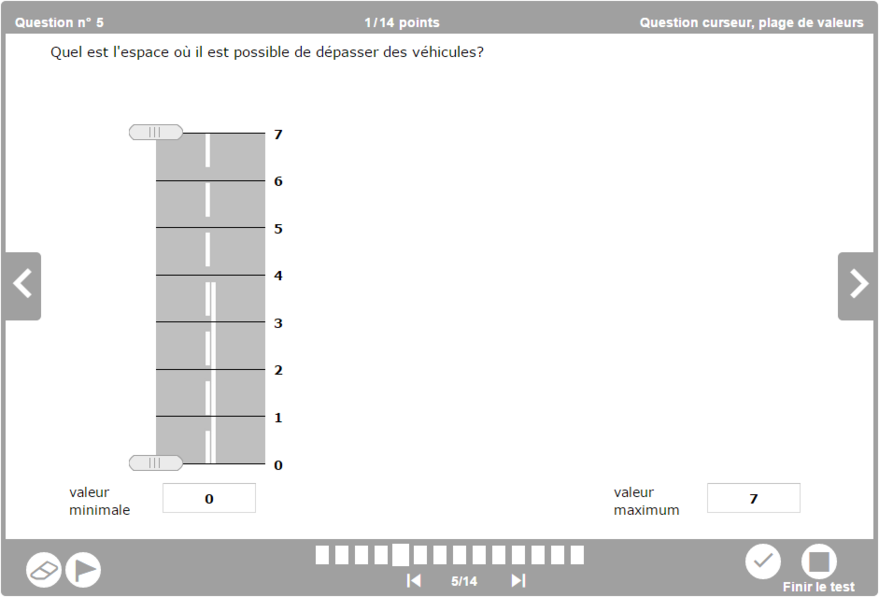
Cursor question, range of values
Survey
Surveys are added to the module to prompt the user to evaluate a training, for instance. The way the survey operates is very near to that of the quiz.
The difference is that the survey displays no percentage of success. It is also possible to compel the participant to answer the questions in order to continue in the survey.
Question with comment
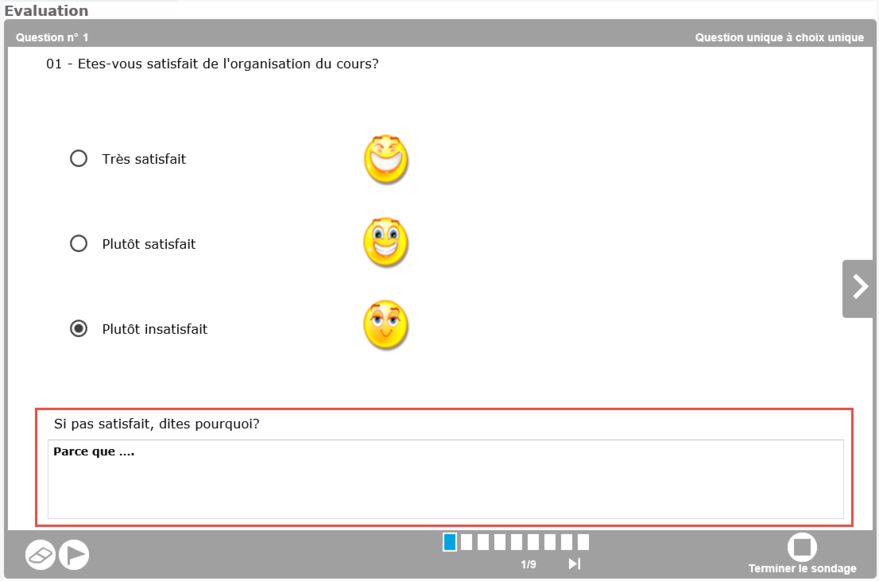
Question with comment
Another difference with quizzes: for questions radio button and checkbox (type 1 and 2), it is possible to enter a comment to the question, if the survey designer has planned.