
 FR
FR DE
DE EN
EN


Presentation of myTeacher
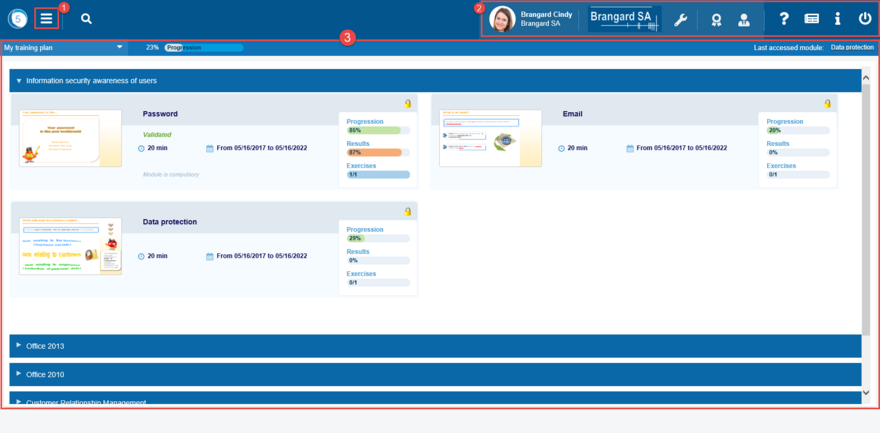
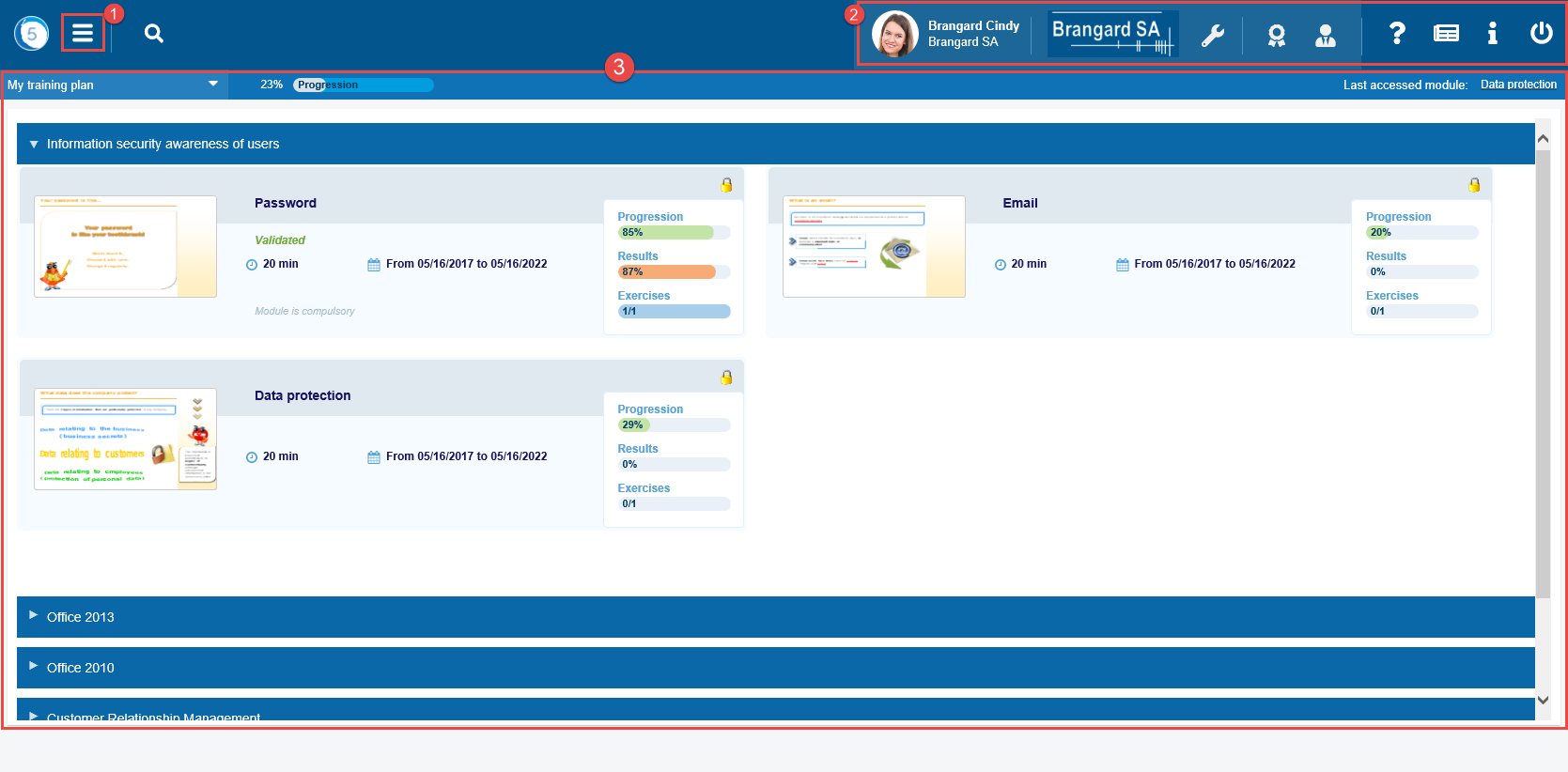
Welcome screen
Welcome to myTeacher. The training screen is made of three distinct fields:
-
The Burger menu which allows access to the different working spaces (training space, personal space, social space) and, in this way, to have access to various functions
-
The shortcut bar which allows, among other things, to access to certificates, managers, online help or also to log off
-
The training plan witch allows direct access to your trainings
Each function of myTeacher opens in a new window at this location.
Close it to return to your training plan.
The myTeacher logo (top left) allows you to return to the training plan at any time.
Training plan and news
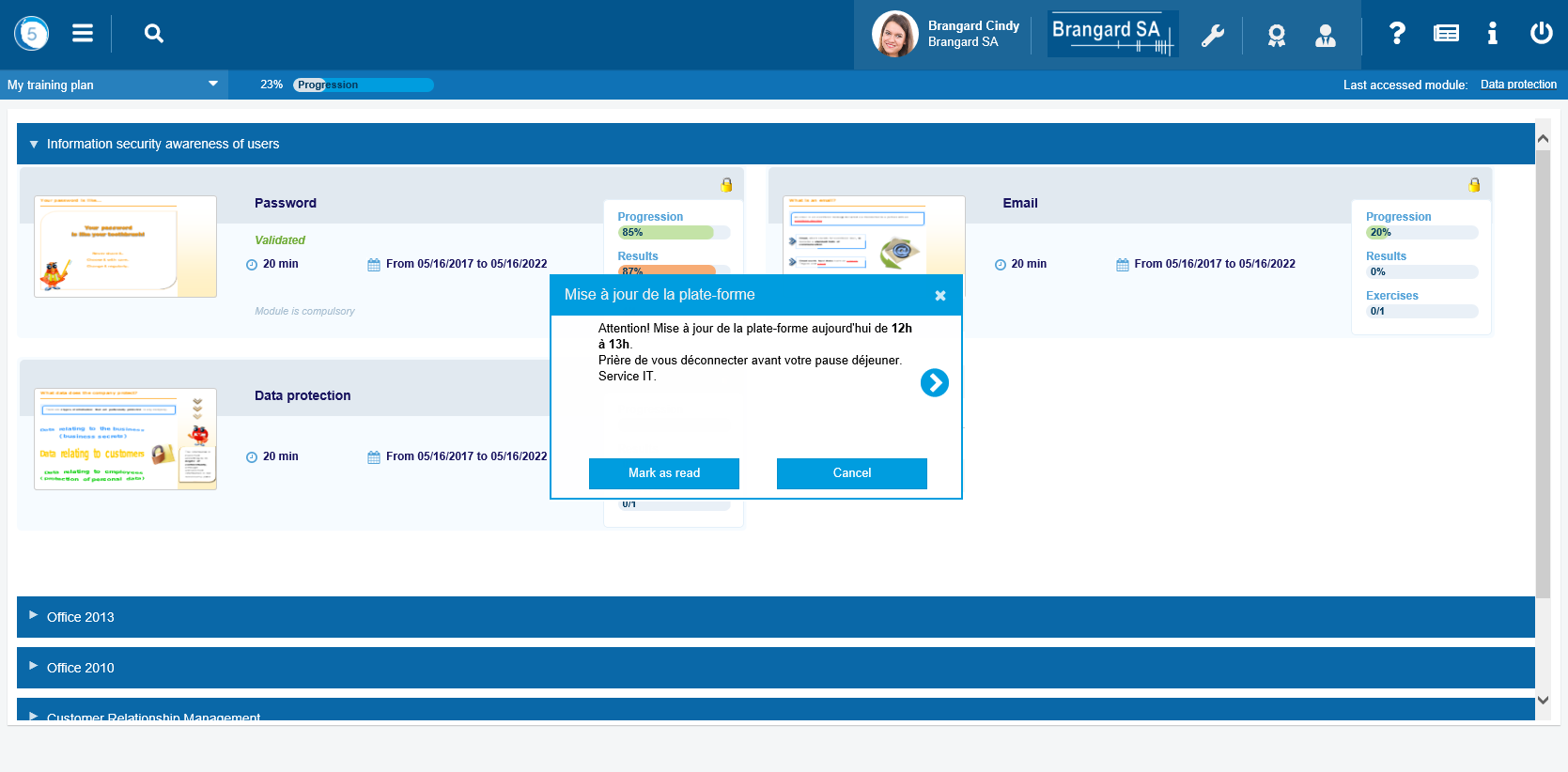
At myTeacher startup, a window may open, displaying news.
- the Cancel button allows you to go to the training plan
- the Mark As Read button allows the user to no longer have this information at startup
- the arrows allow to move from new to new, if several news in progress not read
You also access this information from the News icon in the shortcut bar.
Click on the different items in the strip on the left of Help myTeacher for more explanation on these various elements.