
 FR
FR DE
DE EN
EN


Training plan
The training plan is the gateway to all the training that the user can follow.
These trainings, or modules, are grouped into curses.
Training plan
Description
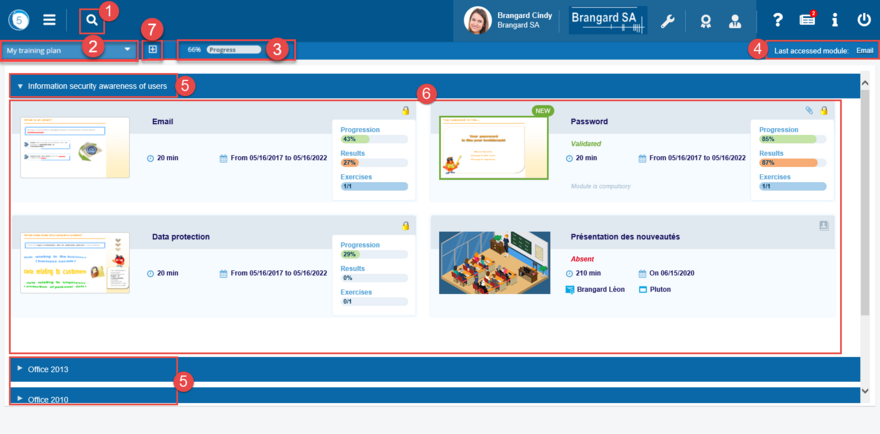
The training plan presents:
- a Search area
- a drop-down list My training plan
- the total progress of the modules
- access to the last module viewed
- the cursus
- the modules of the selected cursus
- a button to expand / collapse all cursus at once
Click on a cursus to open it, and thus access its modules.
Click on the thumbnail of a module or on its name to access it.
Pre-requisites between modules of a cursus
It is possible that the user cannot have access to one of his modules because the administrator has defined pre-requisites between the modules of a cursus.
These pre-requisites happen on a rate of course of the module and/or rates of success of the exercises.
This allows to define the attribution of the modules according to the percentage of success to a Quiz, for instance. Thus, as long as this rate is not obtained, the module of which it depends is locked, and it is then shaded in the plan of formation. At a glance over this module, a tool-tip explains why it is locked.
Online module information
Online module information
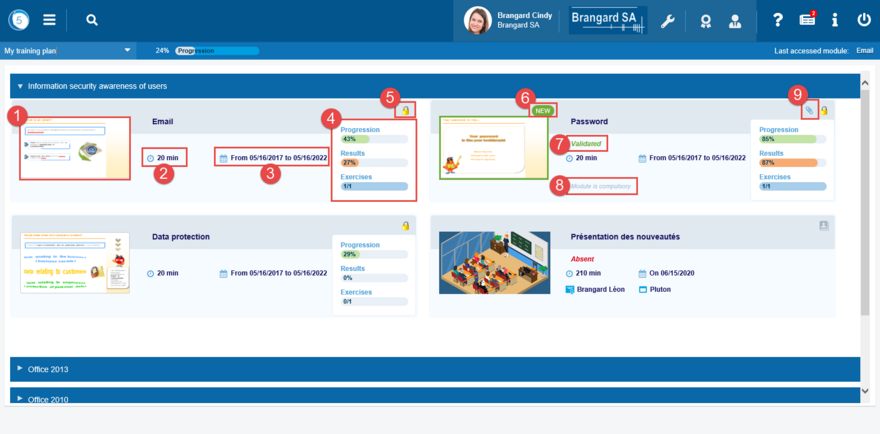
Basic information of an online module
|
1. Thumbnail |
This thumbnail of a lesson in the module provides an overview.
Note: The same thumbnail identifies all the quiz modules, and another one identifies all the survey modules.
|
|
2. Duration |
Estimated duration of the module
|
|
3. From... to... |
Module validity dates
|
|
4. Degree of progress of the module |
Display the rate of course of the module. When a module has conditions of validation, the bars of progress appear shaded as long as the module is not acquired. |
|
4. Results |
Display of the rate of success over all the exercises of the module |
|
4. Exercices |
Display of the progress of the exercises (over all the exercises of the module) |
|
5. Category |
This icon allows to categorise modules. By default, there are 3 categories: Indoor, Online or exercises. But the administrator of myTeacher can add some more. |
Optional information from an online module
|
6. New |
Icon which indicates a new module. |
|
7. Validated / Not validated |
This mention appears when a module has validation conditions. |
|
8. Compulsory |
Icon which indicates that a particular module must be consulted. |
|
9. Resources |
Icon (clickable) which indicates that resources are attached to this module. |
|
Audio |
There may also be an Audio icon that indicates that the module contains sound. |
Information of classroom lessons
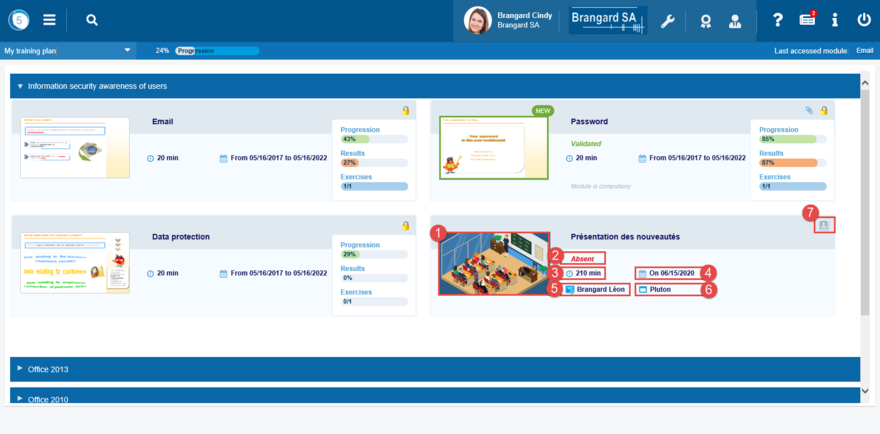
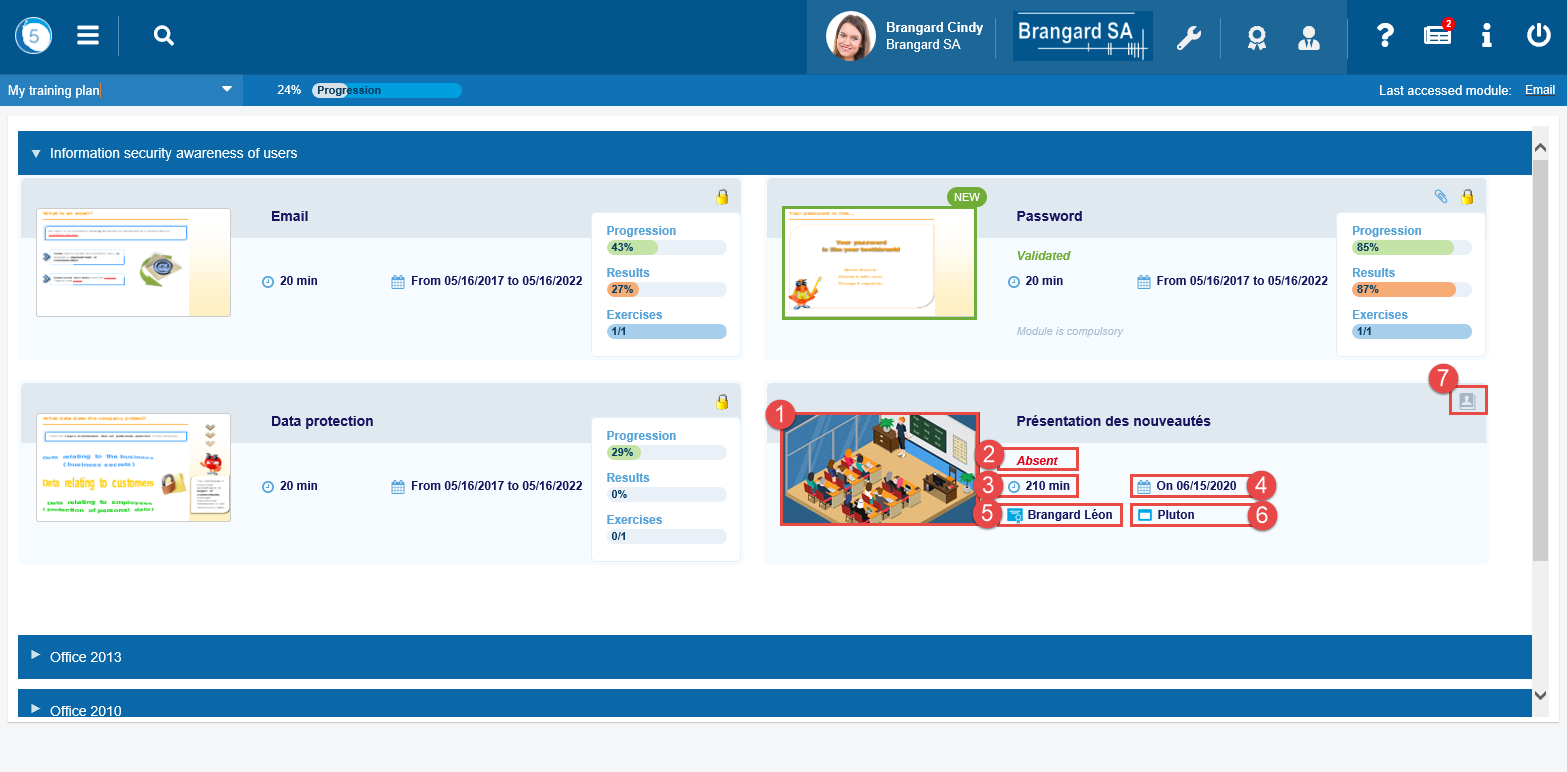
Information of classroom lessons
|
1. Thumbnail |
A single miniature identifies all the classroom lessons. |
|
2. Absent or Present |
Indicates participation in the classroom course. |
|
3. Duration |
of the classroom |
|
4. Date |
of the classroom |
|
5. Trainer |
of the classroom |
|
6. Room |
of the classroom |
|
7. Category |
Classroom icon |
Personalisation of the training plan
Drop-down list My training plan
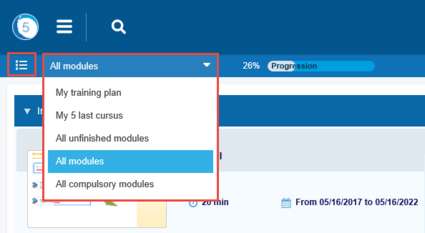
Drop-down list My training plan
The user can filter the modules which he wishes to visualise thanks to the drop-down list My training plan. It proposes 5 options:
-
My training plan (active modules only)
-
My 5 last cursus
-
All unfinished modules
-
All modules
-
All compulsory modules
For the last 4 options, an icon (listing) allows you to go back to the active formations, that is to say to the option My training plan, which is the default view.
Attention! The content of the total progression of the modules is then adjusted to the selection done in the drop-down list My training plan.
The personalizations of the training plan are recorded and will reappear in the next sessions.
The research
This function allows to research a word or an expression in the modules of the training plan.
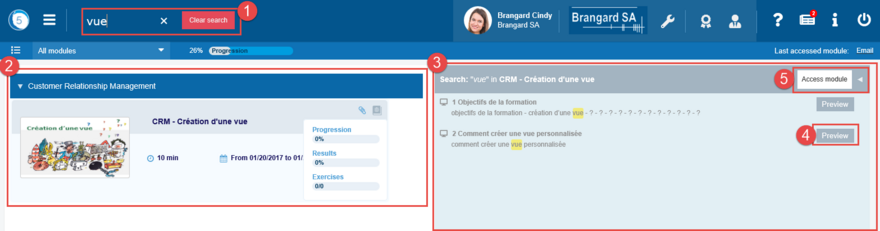
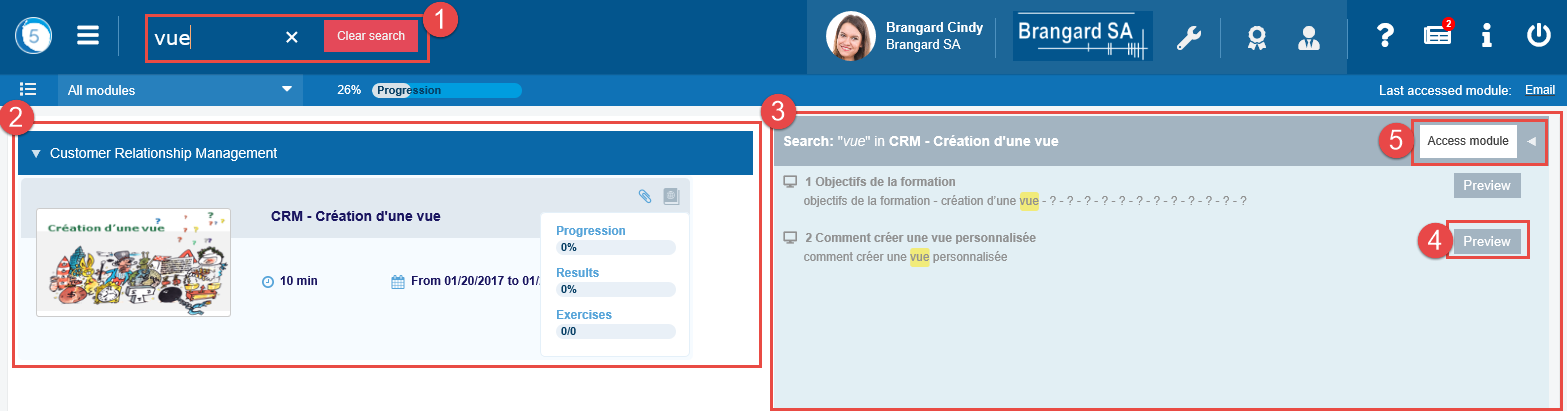
Results of the research
-
Fill in the word or the expression desired in the field research…and then validate with the key Enter (Return).
-
The list of modules containing the desired term is displayed.
-
A window lists the different elements (lesson, action, definition…) which contain the term.
-
A button Preview allows you to have a preview.
-
A button Access module provides direct access to this element in the module.
Click on another module (2) to have the results of the research concerning this module.
In order to no longer display the results of the research, click on the small cross of the field research… or on the button Clear search.
Other features


Burger menu and shortcut bar
MyTeacher functionality reminder:
- The Burger menu which allows you to access the different work spaces (training space, personal space, social space) and thus access various functions
- The certificates (cursus, modules, classroom courses) accessible from the shortcuts bar
- Managers (cursus, modules, groups, users) also accessible from the shortcuts bar