
 FR
FR DE
DE EN
EN


Audio
Audio (sound) can now be inserted into your lessons.
In the main PowerPoint document, the slide which has audio content contains the lesson name in the title, optionally followed by "audio_icon" in brackets, which sets an audio icon in the lesson summary.
Click on Insert > Audio > Audio on my PC, and insert the desired audio content.
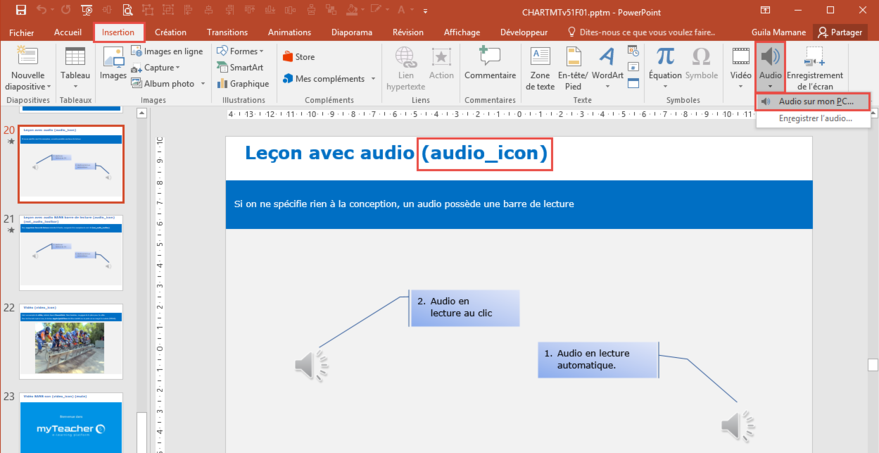
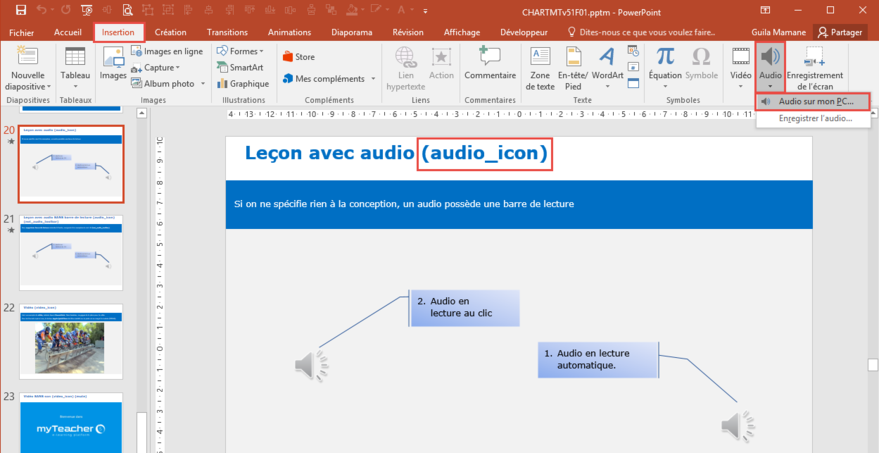
Insert > Audio
In the main PowerPoint document, you can set whether the audio content is played automatically or after being clicked (the Playback tab of the audio).
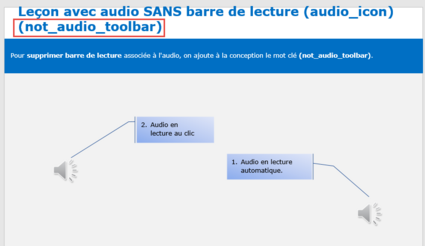
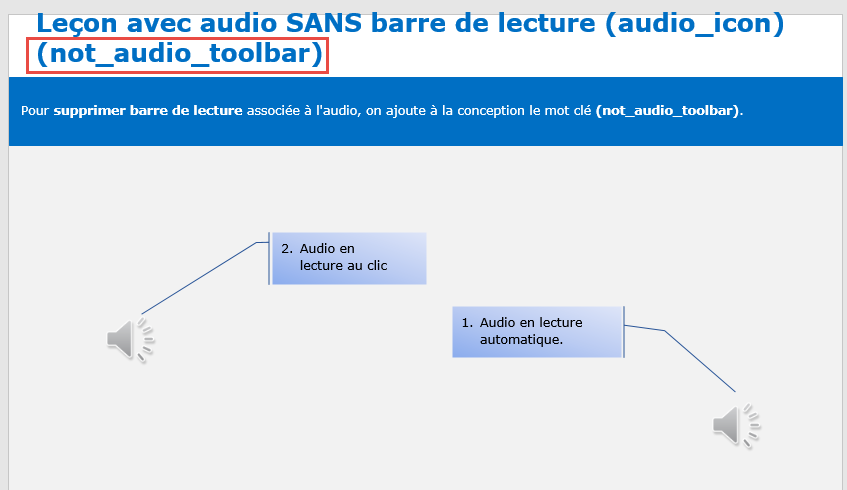
Audio without playback toolbar
It is possible to hide the associated playback toolbar.
To do this, add the "not_audio_toolbar" keyword in the slide title.
This will affect all audio files within the lesson.
It is not possible to have one audio file with the playback toolbar and one without, both within the same lesson.
Note: in a similar manner you can disable the playback toolbar for an audio file that is inside an action.
Video and audio
Do not put both video and audio in the same lesson (PowerPoint) or in an action! This may not be reflected in myTeacher.