
 FR
FR DE
DE EN
EN


Videos
From the last version of myTeacher (5) it is no longer possible to integrate the content of flash (.swf).
Henceforth, the integration of a module is done in the format HTML5 (via myRenda).
Standard video
The videos require no longer external video player. One must use the drive integrated to PowerPoint.
The video formats compatible are the following ones: mp4, mov and avi.
For the formats mp4 and mov, the drive Apple quickTime must be installed on the post where the module is conceived (for the versions of Office previous to 2013).
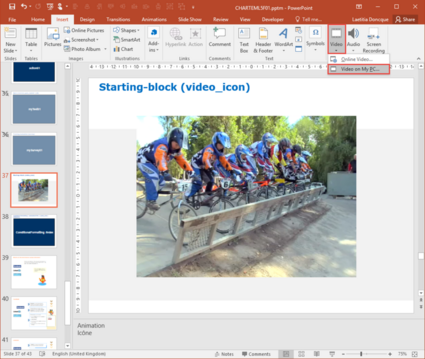
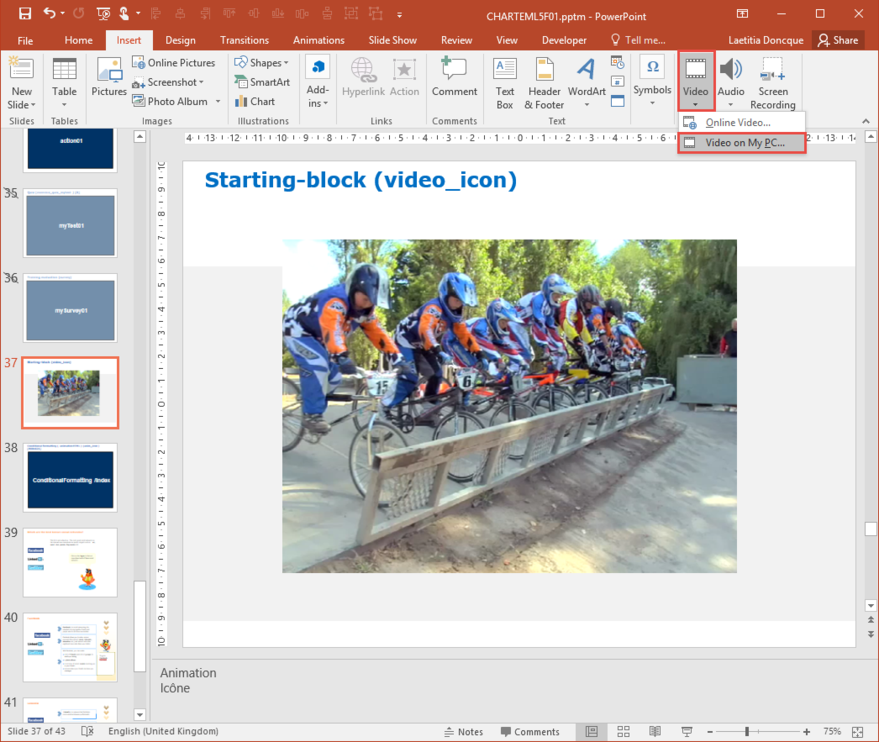
Insertion > Video
In the main PowerPoint, the slide video is a "normal" slide (not hidden).
It contains the name of the lesson in the title, eventually followed by "video icon" between brackets, to have the video icon in the summary of the module.
And then click on Insertion > video > Video from the folder, and insert the desired video.
The videos being integrated in the main Powerpoint they do not need to be stored in the folder video of the module. But you can keep them in the folder SRC (which contains all the documents which served for the conception of the module).


Playing a video
For the playing of the video, the intervention of the user is necessary.
One must not use the option Start Automatically, but only the option Start At the click.
The functions to put the sound mute or for slicing the video from PowerPoint are not taken up in myTeacher.
Video and audio
Do not put both video and audio in the same lesson (PowerPoint) or in an action! This may not be reflected in myTeacher.
Videos from YouTube
You can now include videos which have been uploaded to YouTube (https://www.youtube.com/).
The benefit to this is that you no longer need to rework the entire module if the video has been modified!
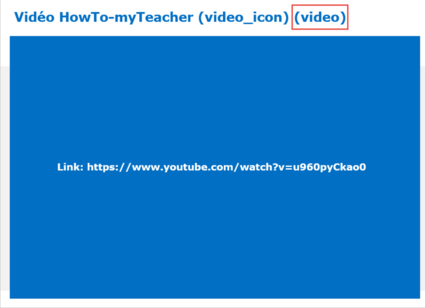
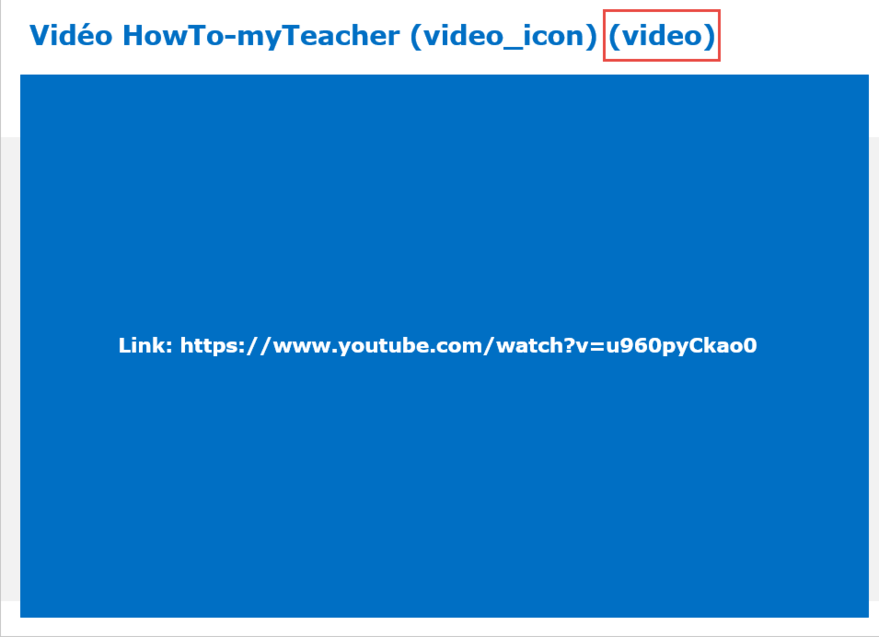
YouTube video
In the main PowerPoint document, the video slide is a "normal" (unmasked) slide.
It contains the lesson name in the title, optionally followed by "video_icon" in brackets, which sets a video icon in the lesson summary, and ending with the mandatory keyword "video" in brackets, which indicates this as an external video.
This slide contains a rectangle with the "Link:" keyword, followed by the YouTube video URL.
Please note: the address must always begin with https://www.youtube.com.
Videos without sound
It is possible to disable sound for a chosen video.
To do this, add the "mute" keyword in the video slide title.
Please note: in a similar manner you can disable sound from a video that is inside an action.