
 FR
FR DE
DE EN
EN


Example of questions created with myTest
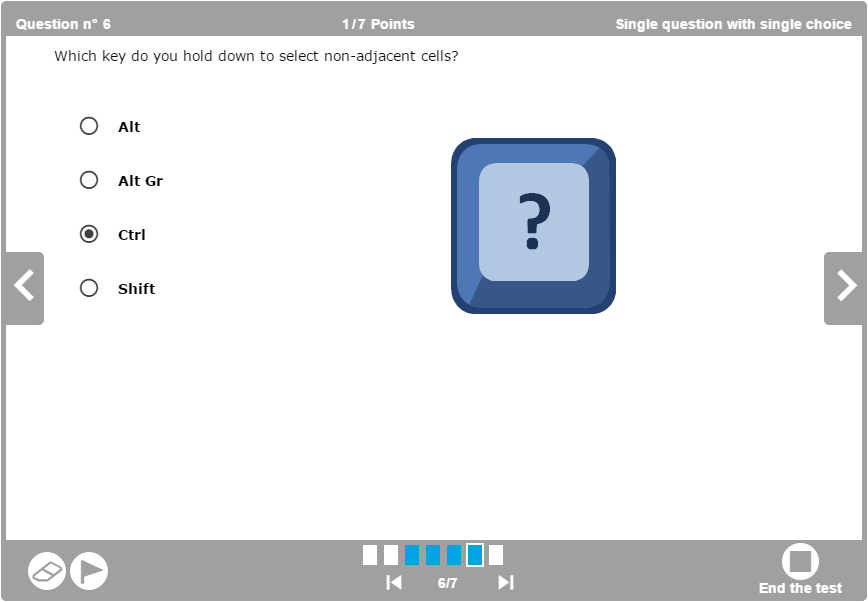
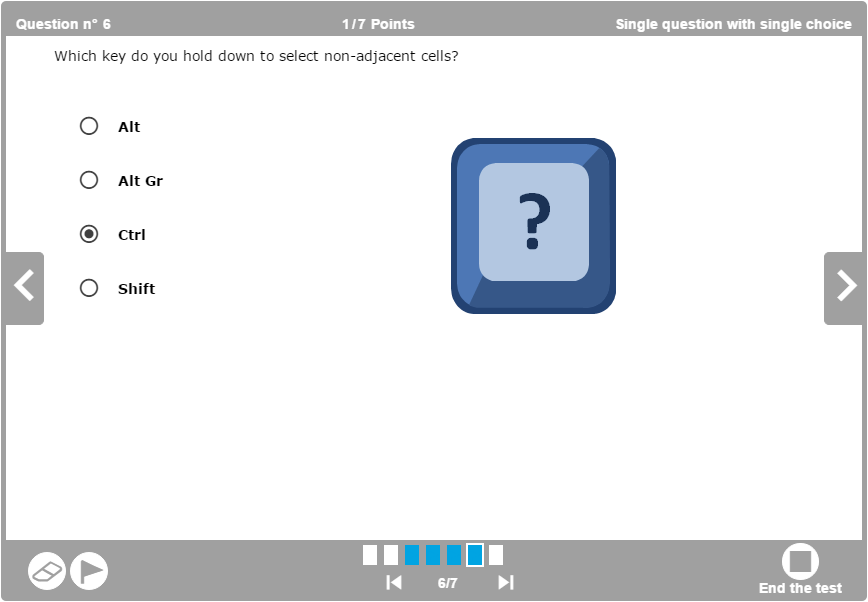
Preview in myTeacher of a question radio button type with image in the background
You can also add an image for each proposition.
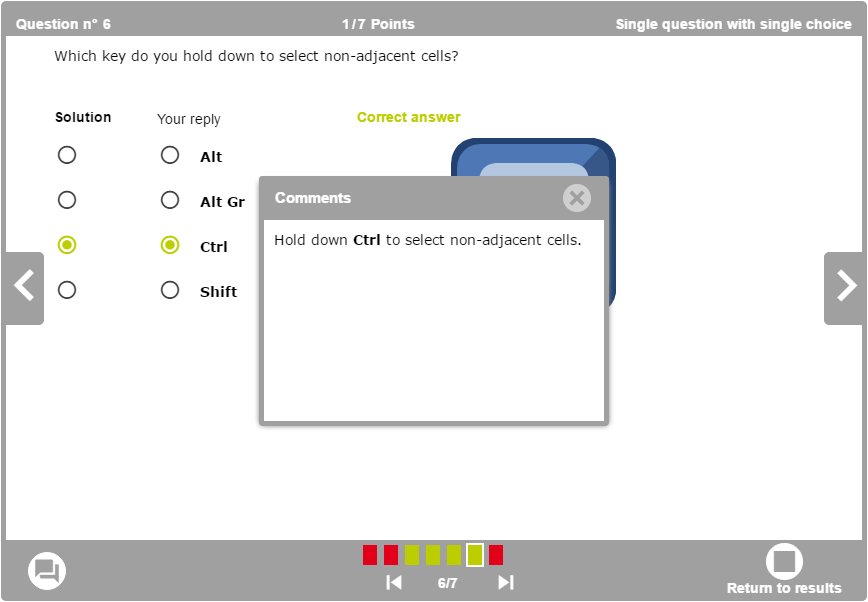
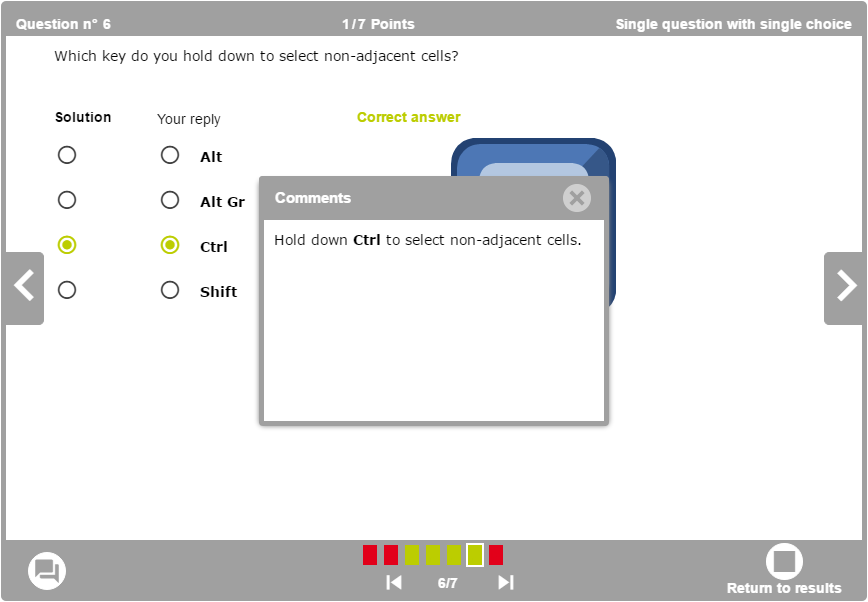
Preview of the same question with the correction and the display of the feedback
Buttons visible in the drive of the quiz
 Mark the question to go back to it easily.
 Erase the answers of the current question.
 Go to the first lesson.
 Go to the last lesson.
 Go to the previous lesson.
 Go to the following lesson.
 Use the button End the test to display the summary of the answers.
 The learner can have the possibility to display or not the feedback.
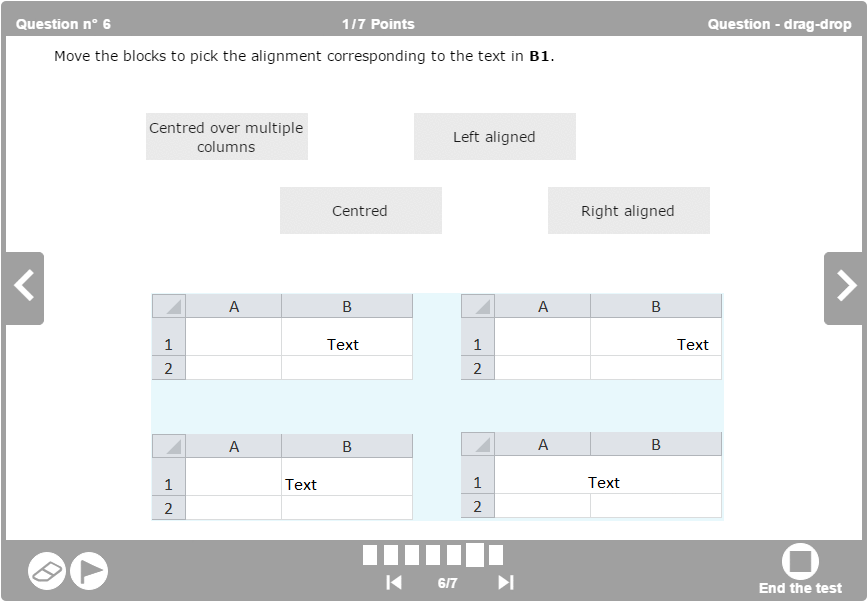
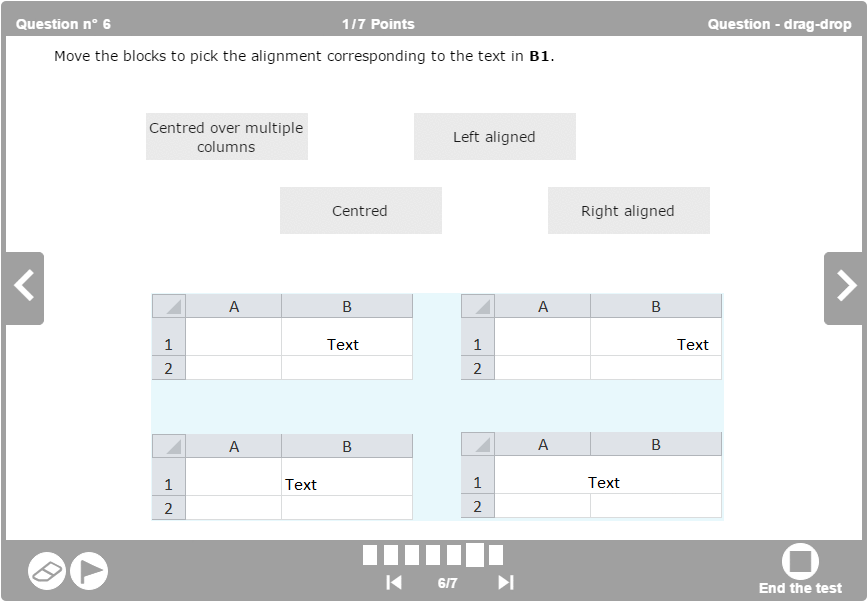
Preview in myTeacher of a question of type grab-and-drop
The image in the background is there to support the exercise. Use for instance a schema of a process to be completed or a map to which names of a country must be associated.
Buttons visible in the drive of quiz when the conceiver has parametered the options for the quiz
 The user can validate the current question during the quiz.


At the end of the quiz, the user can print the results in PDF.


At the end of quiz, the user can print a certificate of success for the cursus.