
 FR
FR DE
DE EN
EN


Main screen
All is done in the main screen of myRenda, the choice of servers excepted.
At the launch of the application, here is the main screen which is displayed.
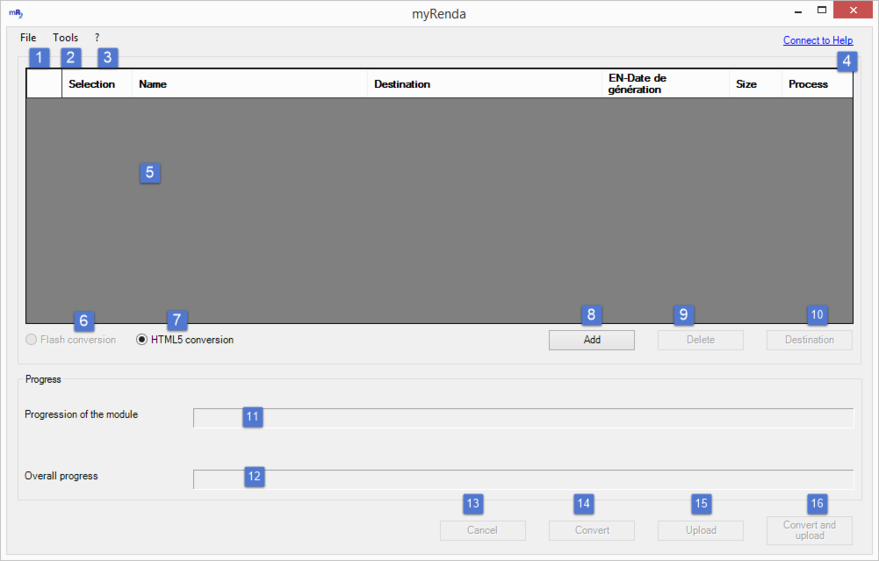
Main screen
| 1 |
Menu File : to add modules to the list or close the application. |
| 2 |
Menu Tools to administer the choice of server and the language of application. |
| 3 |
Menu ? to have access to help and About myRenda (administration of licenses) |
|
4 |
Connection to the server myTeacher. |
| 5 |
Display of the list of modules. |
| 6 |
Radio Button Conversion Flash to convert the PowerPoint presentations in the format flash (button grayed out or non-existent because the Flash format is no longer supported). |
| 7 |
Radio Button Conversion HTML5 to convert PowerPoint presentations in the format HTML5. |
| 8 |
Button Add to add modules to the list. |
| 9 |
Button Cancel to cancel modules selected in the list. |
| 10 |
Button Destination to choose the folder of destination in which to convert the modules selected in the list. |
| 11 |
Bar of progress of the current processing module. |
| 12 |
Bar of progress according to the number of modules selected in the list. |
| 13 |
Button Cancel to stop all the current processing. |
| 14 |
Button Convert to convert the modules selected in the list. |
| 15 |
Button Integrate to integrate in myTeacher the modules selected in the list. |
| 16 |
Button Convert and integrate to convert and integrate in myTeacher the modules selected in the list. |